

Terminal Server - more flexibility or just higher costs
Taking a closer look at the advantages and disadvantages of terminal servers
Terminal Servers enable organisations to centrally host applications and resources and publish them remotely to client devices – regardless of the location or platform of the end device. Advantages of terminal servers are, for example, more flexibility for users and a less costly IT infrastructure for maintenance and security. Disadvantages are the high data load and possible higher costs.
What is a terminal server?
A terminal server is a server or network device that can make connections to multiple client systems toconnect to a LAN network without a modem or network interface. In effect, it acts like your own computer, even though you can access it remotely.

Advantages and disadvantages of desktop virtualisation
Advantages of terminal servers
- More flexibility for employees: Direct access to the workplace is no longer tied to the desk, but is possible from anywhere and at any time via the virtual desktop.
- More security: IT security is now focused on a single device. In addition, server systems can be better secured, as backup, firewall and security policies only need to be implemented centrally.
- Less effortiT staff only have to maintain and update this one device.
- Uncomplicated outsourcing: The location and maintenance of the terminal server can also be outsourced to an external partner. This keeps the hardware investment low, flexible and gives you the option of buying some IT services externally.
Disadvantages of terminal servers
- Large data load and high latenciesbecause only the image is usually transmitted at a few KB/s between a thin client and a terminal server, most connections are sufficient. It is somewhat more problematic if the users are to be able to copy data to the terminals or print something
- Online constraint for workstationsif the server is not located in your own building, nothing works without the Internet because client and server can no longer communicate with each other. In order not to slow down work, employees can work from their home office or via hotspots, or a second internet connection can be provided. It should also be taken into account that there is no or very poor access from the train or on the plane. Then you can at least set up the Office package, including Outlook, locally on the end device, but this softens the overall concept somewhat.
- Higher server costs: High availability and performance, perhaps even 3D graphics performance, are the requirements for a server for desktop virtualisation. You can rent a ready-made solution from a cloud provider; the high level of standardisation at the provider usually reduces the investment costs.
The costs
Virtualised desktops are not necessarily cheaper than classic server-client models. In addition to the good server components, there is the licence for the use of desktop virtualisation. On the other hand, you can save on the client side because you don’t necessarily need strong devices, but weaker ones that are much cheaper. If, for example, you don’t have your own IT department that can take care of the administration of a powerful terminal server, this can also be done by an external partner – for example as a managed service. Central administration saves costs.

Perfect for companies with multiple locations
Terminal servers are indeed an exciting alternative to a sea of office computers. Employees are thus more mobile and flexible, can do their work faster and need to ask the IT department for advice less often. Not only corporations can afford this technology, small and medium-sized enterprises should also consider the advantages of desktop virtualisation. The most important advantage is certainly that work can be done regardless of location; the technology is ideal for companies with multiple locations. Centralised management is also perfect for streamlining the business, simplifying the set-up of new employees and managing access rights and software access.
Header image: © Scanrail, stock.adobe.com


How to deactivate Cortana
How to deactivate Cortana
Cortana is software from Microsoft and the vendor’s personal productivity assistant. It’s supposed to help save time so users can focus on what’s important. However, it is not clear what Cortana records and where the recording of Cortana’s voice commands end up. These privacy issues are leading many users to want to disable Cortana.
The problem
The voice assistant Cortana in Windows 10 is criticised by some users because Cortana is suspected of transferring users‘ data to the cloud and monitoring the user. Cortana cannot simply be deleted and uninstalled, but there are a few ways to deactivate the tool in Windows 10. Especially users with Windows 10 Pro and Enterprise find it easy because they can rely on group policies. In the smaller Windows 10 versions, you have to rely on manual settings.
Disable Cortana
Cortana can be deactivated at any time – but the configuration is retained if desired. Those who still use the original version of Windows 10 can deactivate Cortana quickly and easily in the settings:
- To deactivate, click on the search field in the taskbar and then on the left-hand side on the Notebook symbol (third symbol from the top), then click on Settings
- The Slider for Cortana can offer suggestions, ideas, reminders, alerts and much more slide it to „Off. At this point, you can reactivate the assistant at any time
Deactivating Cortana in Windows 10 versions before Anniversary Update (1607)
Even from version 1607 and 1703, Cortana can neither be uninstalled nor completely removed. However, Cortana can be largely eliminated from the system so that the assistant can no longer collect data. Users with Windows 10 Pro and Windows 10 Enterprise have it a little easier: They can deactivate Cortana in the policy settings. To do this,open the tool „gpedit.msc“ and navigate to Computer ConfigurationAdministrative TemplatesWindows ComponentsSearch. On the right-hand side, you can prevent users from activating Cortana and searching the Internet, for example, with „Do not search the web and do not display web results in the search“ With the policy setting „Allow Cortana„, one candisableCortana on all computers using this policyby setting the option „Disable„.Users will then only be able to use normal search, but not Cortana.
Deactivating Cortana in Windows 10 Home via the Registry
In smaller Windows 10 versions, you can only disable Cortana via the registry:
- Open the registry editor by entering regedit.exe in the search field of the Start menu.

- Go to the path „HKEY_LOCAL_MACHINESOFTWAREPolicyManagercurrentdeviceExperience„navigate
- On the right-hand side, select the entry „AllowCortana“ to „0“ (zero) and restart the computer
If the entry is not available, proceed as follows:
- Right-click on the key „Experience“ and select from the context menu New DWORD value (32-bit) from the context menu. There give the value the designation „AllowCortana and set the value to „0“ (zero).
- Restart the computer. In the search field the entry „Search Windows“ instead of „Ask me something“ should appear.
Uninstall Cortana
If you are willing to experiment, you can uninstall Cortana via an unofficial script that can be found on the site „deskmodder.de“. However, you should make a full backup of Windows 10 before uninstalling, as there is no guarantee that the system will survive this unscathed. The execution of the script is only recommended for experienced users.
Header image: © monticellllo, stock.adobe.com
Create Word template - Simple instructions in a few steps
Create a Word template - Simple instructions in just a few steps
Free word processing software abounds, yet Microsoft’s Word remains the most widely used in the world. One of the most important features of Word is the format templates, which ensure uniform formatting with the help of defined characteristics such as font, font size and line spacing. Especially in the business sector, for job applications or for scientific papers where special specifications have to be met, templates are extremely helpful. By designing the format templates in advance, you prepare the creation of long texts in Word and save yourself a lot of work in finally putting the finished text into the correct layout. Even if the text is already written, templates ensure that all text modules are standardised and that no formatting errors remain. Word already contains some pre-installed templates for formats as well as for special forms or document types such as letterhead, invitations or business cards. However, if these do not meet your needs, you can create your own Word template and save the individual configurations as a basis for further texts.
Two different templates
There are two different types of templates available in Microsoft Word: Format Templates and Document Templates:
- The style sheet specifies formal categories such as font, line spacing or paragraphs. Corresponding templates are located in the „Start“ tab under „Format templates“
- The document template contains formal settings as well as additional elements such as headers and footers, logos, lists, placeholders or text fields. These can be individually designed so that they can be used as an invoice, letterhead, cover letter, etc. Can be used.
Change or create a style sheet
- Open a new Word document.
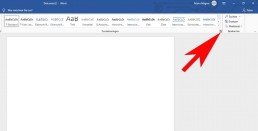
- Click on the arrow on the right below the menu bar „Format templates„.
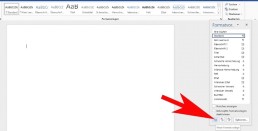
- In the newly opened window, click on „New style“ at the bottom left.
- Enter a name for the style in the first field.
- Then configure all the properties that your template should contain.
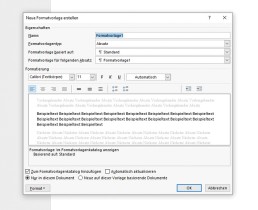
- Finally, click on „OK„. The template will then be added to the style sheets that can be found in the „Start“ tab.
Create Word template for documents
To create a new Word template in which you can save a special document according to your own ideas, there are several possibilities. There are already various ready-made templates available in Word. To use such a template, click on „File“ in Word and then on „New„. There are many different options under „Office-com templates„. After you have selected a template, it opens in a new window and is available for editing. Edit and save template After you have found a suitable template, you can edit it according to your own ideas and insert graphics, tables or logos, change the formatting and make other changes. When everything is ready, the result can be saved as a template: ⦁ Click on „Save and send“ in the menu item „File“. ⦁ Click on „Change file type“ and double-click on „Template„.
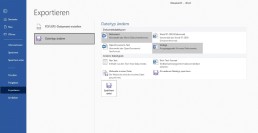
⦁ A window opens in which you can give the template a name and select the storage location. ⦁ Click on „Save“ and the new template will be created.
Header image: © wachiwit, stock.adobe.com
Activate Windows 10 via (CMD)
Activate Windows 10 via (CMD)
Sometimes Windows cannot be activated via the interface Without third-party Windows 10 activation tools, you can activate Windows 10with CMD for free. You can open the command prompt in two variants under Windows 10: With administrator rights or as a user with limited rights. Some actions performed in the command line require extended rights. In such cases, you can then specifically start the Windows 10command prompt as an administrator. 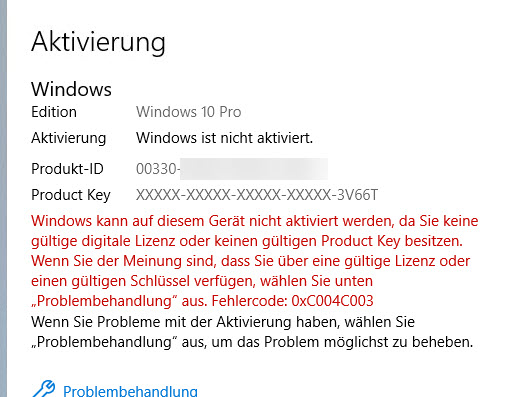 1. Start the command prompt as administrator (right click):
 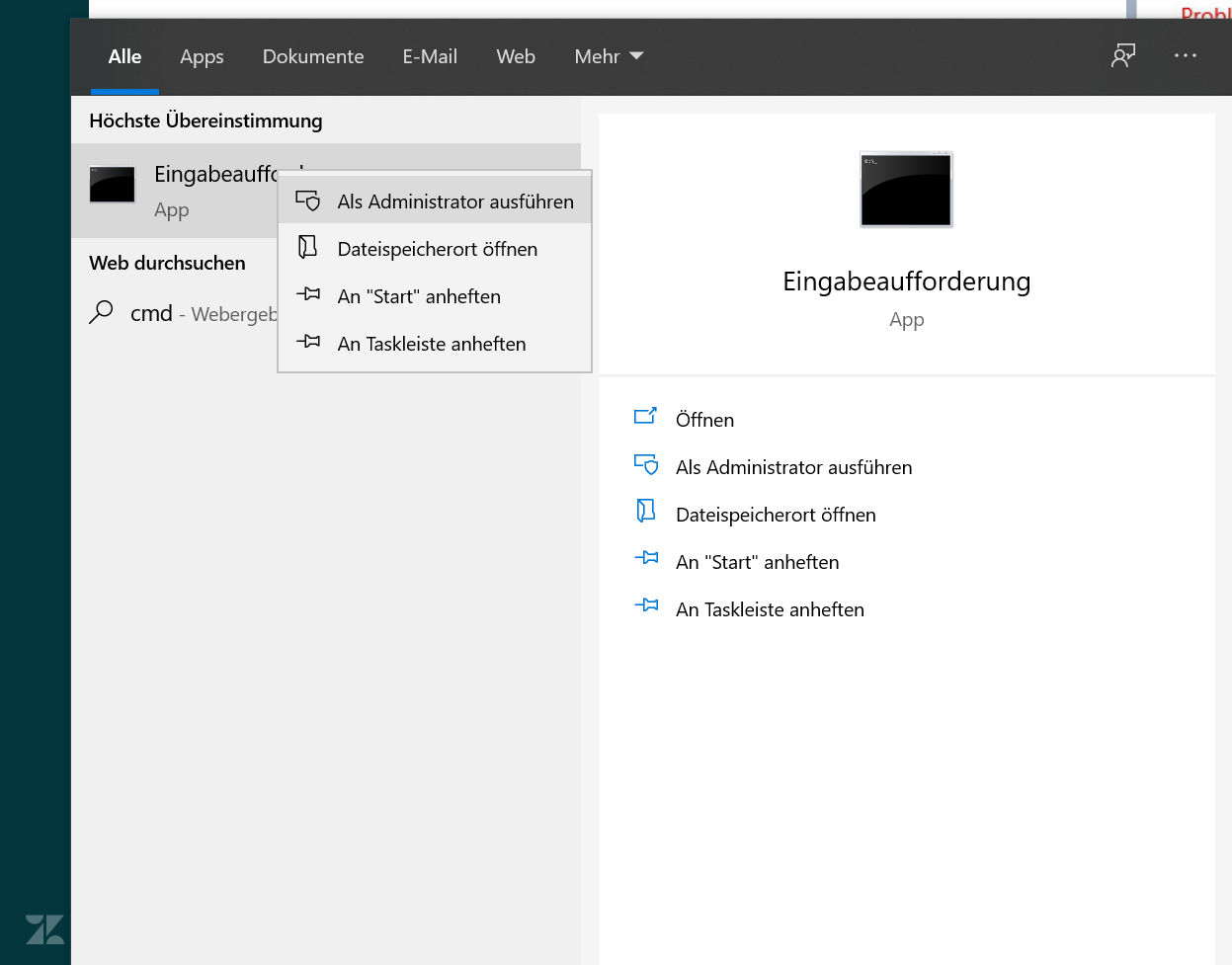 2. Write the following code in the window: slmgr -ipk XXXXX-XXXXX-XXXXX-XXXXX (Instead of XXXX, please enter the product key)
 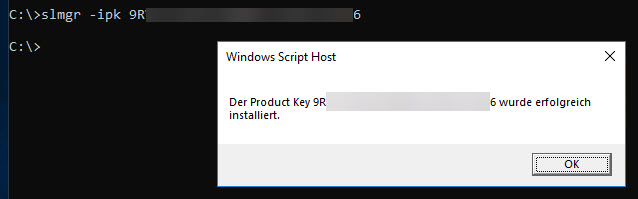 3. The key must then be activated. Write the following lines in the command prompt: slmgr -ato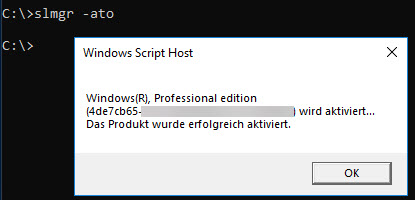
What is new in the New Update of Windows 10? We will be happy to answer this question under this link here
This is what Windows should look like in the future
Windows 10: Plans new design for 2021
Five years after the first release, Microsoft wants to implement new ideas in Windows 10. First reports indicate that users will have to change in many areas. What does Microsoft have in mind? Microsoft is working on a new design for Windows 10. What the update will mean for users is not clear in detail according to initial reports, but the direction is clear. The operating system is to receive a completely new look in 2021, in which, among other things, the Start menu will be refreshed. The new design is not expected to be released until the end of 2021.
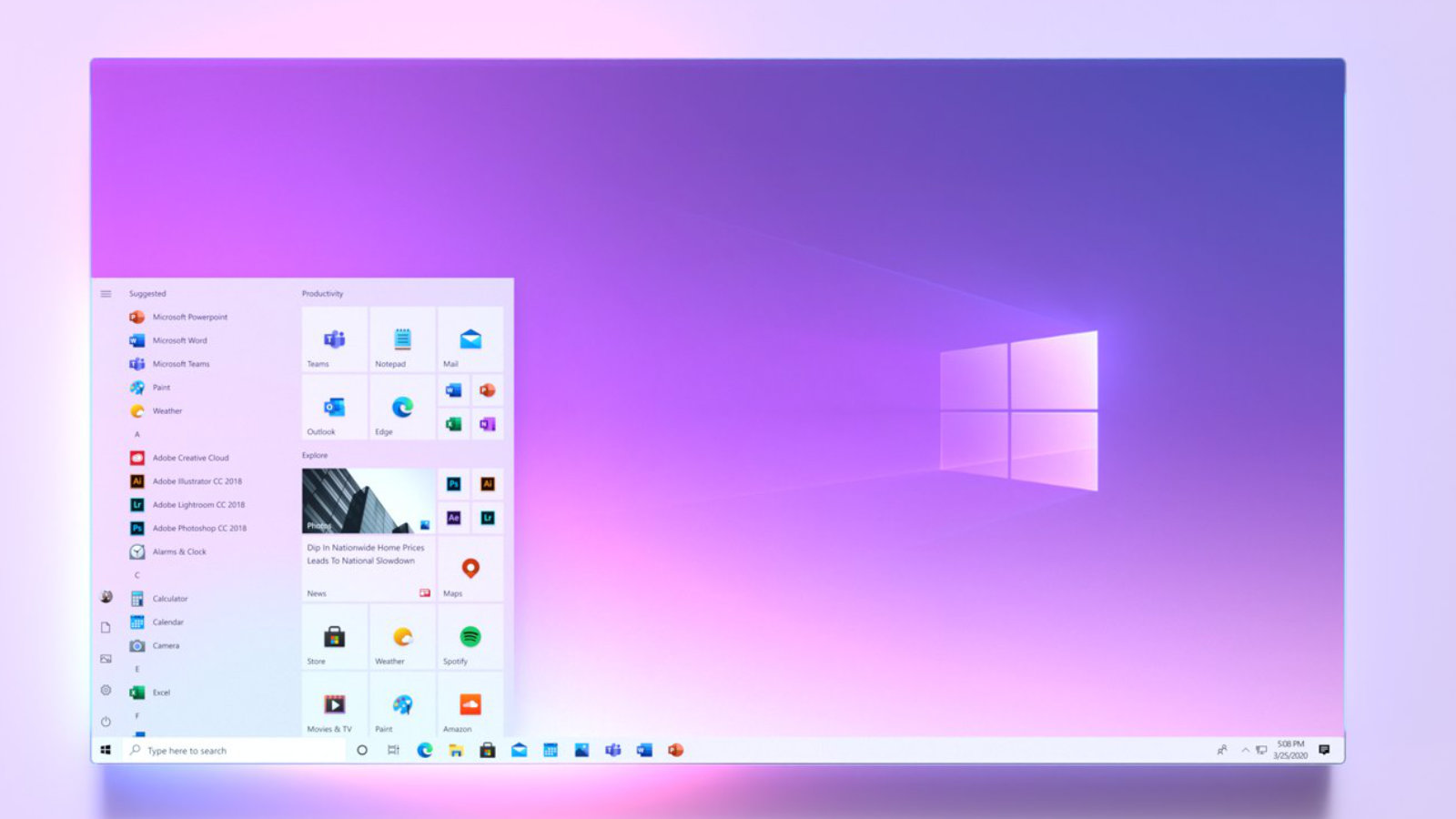
There is to be a new look in the following areas:
Start menu:
Only with the Windows 10October Update was the appearance of the Start menu adjusted, but that was not it yet. Apparently Microsoft is working on the effects used.
Taskbar:
Allegedly, the code of the taskbar will be changed more extensively, but the details are not yet clear. Of course, fans are already dreaming of features such as a centred start button like in Windows 10X or a transparent taskbar, all of which you still have to set yourself with additional tools.
Explorer
Explorer has not had any new features for a long time, so the interface could certainly be improved. The direction is clear: users should no longer be overwhelmed with options.
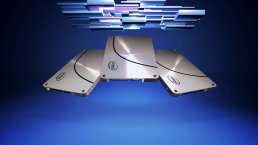
What is an SSD (Solid State Drive)?
The term SSD is an abbreviation and stands for "solid-state drive". It is an electronic storage medium. Flash memory chips and SDRAMs are used for SSD storage. SSD storage media are silent. This is because they do not have any moving parts and therefore cannot generate any noise. While the data in conventional hard disk drives (HDDs) are written magnetically to disks by mechanical read-write heads, the SSD is a purely electronic hard disk. The data is stored in digital memory cells. Its greatest advantage is the short access time, because each of these cells can be accessed directly and without detours via its own address With HDDs, on the other hand, the read-write heads must first travel to the data. If the data are distributed in different locations, they have to be gathered together in a time-consuming process
Advantages and disadvantages of SSDs
SSDs run completely noiselessly, are insensitive to shocks, produce little waste heat and do their job even under extreme conditions. Above all, SSDs are blazingly fast and can give any hard drive system a major performance boost. But they also have disadvantages. One disadvantage of SSDs compared to HDDs is their durability. While classic HDDs can theoretically be written to an infinite number of times, the memory cells in SSDs wear out somewhat with each write operation.
The most important advantages of solid state drives in brief are:
- short access times
- high transfer rates
- no start-up times
- no mechanical wear - high reliability
- robust against shocks and vibrations
- low energy consumption
- low heat generation
- silent operation
- high storage density
The following disadvantages can be listed
- more expensive than conventional hard disks
- the number of read/write cycles of the semiconductor memory is limited
System turbo
As a system data carrier, the SSD gives every PC and notebook an enormous performance advantage over the HDD, among other things because the operating system in particular retrieves small data blocks from a wide variety of locations. In addition, the user benefits from short storage times for applications. However, if you have an HDD and would like to clean and speed up your hard drive, we have the Paragon Hard Drive Manager 15 Professional for you, with which you can clean out and relieve your hard drive.

What can you do with the Task Manager?
With the task manager, Windows has a tool for dealing with hidden programmes and with Windows breakdowns. Blitzhandel therefore presents the Windows task manager to you in detail
You can usually tell which programmes are started in Windows by looking at the taskbar at the bottom of your screen. There, the open windows are waiting for you to return to them with a mouse click or the key combination Alt+Tab. However, this taskbar does not show programmes that are running invisibly in the background. This is what the task manager is for under Windows. You can elicit information from it about processes that Windows is busy with on the side
How to open the task manager under Windows 10

Open the extended view of the task manager
Click on "More details" at the bottom of the task manager to open the extended view of the tool. There you will find seven tabs at the top that help you manage other Windows processes:
- "Processes": Here you can see not only the apps you have started, but also all background processes. Next to each process, details about its CPU and memory consumption are given. This information is useful because it helps you to find out, for example, which processes are causing too much CPU load.
- "Performance": In this tab you can see how much memory and CPU are currently being used by means of a graphic. If you click on "Ethernet", your IP address will also be displayed.
- "App History": A kind of utilisation history for all apps. In the history you will find all kinds of details on resource utilisation - including values for CPU time, network activity and network load. If you want to delete the history, click on "Delete load history".
- Autostart: Use this tab to control which apps start automatically when Windows boots. It is best to delete entries that are not needed here. This will ensure that your PC starts up faster. Simply right-click on the entry for an application to deactivate its autostart function. You can also find the same option in the general Windows settings under "Apps | Autostart".
- "Users": In this section, Windows lists all users who are currently logged on to the PC. If you click on one of them, a list with his or her running apps opens.
- "Details": This section is basically the old Processes tab of the Windows 7 Task Manager.
- "Services": The "Services" tab contains information similar to that in the Microsoft Management Console - this contains a list of all services that are intended for computer management.

Microsoft Teams Guide - Important Functions Explained!
Microsoft Teams guide - key features explained!
– and you can also integrate external services. Online meetings, group chats and the joint editing of documents are among the standard functions that offer numerous advantages for employers and employees alike, especially in times of Corona. How to work together efficiently with Teams and what functions the application has to offer are explained below.
Free at Corona time
. Anyone who currently logs into Teams automatically receives a free licence of the otherwise chargeable functions.

The most important functions
Office 365
. This makes collaboration more transparent. With one of the paid plans, the Office suite is available as a desktop version.
Business app integration
Conference calls
Chat
Newsfeed
Personalisation
Cloud storage

Create team
- At the bottom left, go to „Join or Create Team“ and select „Create Team“ – „Create a Team from scratch“ or create a „Team from an existing Office 365 group or team“.
- After specifying the team type, enter the team name and description, then generate the team via „Create“.

Add channels and members
- In the „Members“ tab, click on „Add member“, then enter the email address and specify whether the person may act as a member or guest. Then click on “ Add“.
- To invite a person to Microsoft Teams, click on „Invite people“ at the bottom left.
- Select the method you want to use to reach the person. Switch to the „Channels“ tab and click on „Add channel“.
- enter„Channel name“ and „Description“ and determine whether it should be a standard channel or a private channel. Then click on „Add“.
Leave team or delete team
- Click on the three-dot symbol next to the team name and click on „Leave team“. Finally, confirm with „Leave team“.
- As the sole owner of the team, you can only delete it. To do this, click on the three-dot symbol and then on “ Delete team“. In the subsequent dialogue window, confirm that everything will be deleted and click on „ Delete“.

Making your PC faster - Simple instructions
First consider: Is the computer slow or does the speed problem only affect a single programme? If the latter is the case, then take a closer look at the programme. Use the Task Manager to find out which programmes are currently putting the most load on the PC. With AVG TuneUP you can also clean up and speed upyour PC.
Running processes

If your WindowsPC becomes slow on a regular basis, it could of course be because it is not up to your requirements. Before you think about buying a new PC, you should first check whether the operating system and programmes are up to date. The easiest way to update Windows is via Windows Update. The update function could also be damaged or disabled for whatever reason.
Windows Updates
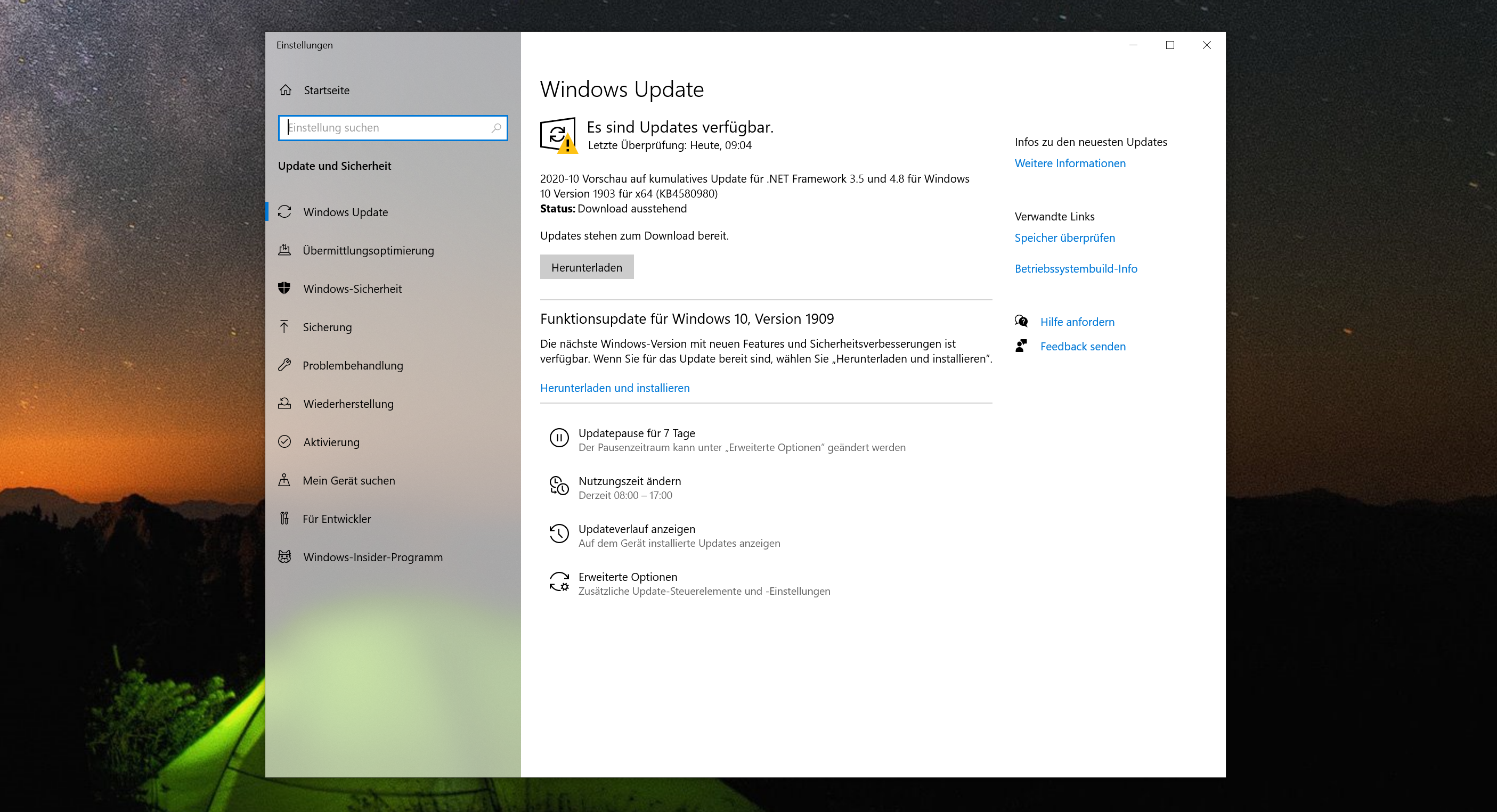 Over time, you install numerous programmes and software applications on your PC. Many of them nest in the autostart programmes after installation. This means that your computer wants to open all these programmes immediately after booting. The more programmes there are in this list, the slower your PC will start. Under Windows, you can use the key combination (CTRL)+(SHIFT LEFT)+(ESC) to call up the task manager, which you can use to deactivate autostart programmes that are not needed.
Autostart programmes

If you have only had an old HDD in your system so far, you should think about installing a much faster SSD now at the latest. Within the last few years, the prices for semiconductor drives have dropped significantly. A good 500 GB SSD can now be bought for less than 60 euros from various online shops. 
-
- Press the key combination [Windows] + [R]. A new
dialogue box opens.
- Enter the command "msconfig" here and confirm with [Enter].
- Click on the "Start" tab and then on "Advanced Options"
- If you check the box in front of "Number of processors", you can select how many cores Windows should be started with. Set the desired number and finally click on "OK".
Advanced start options


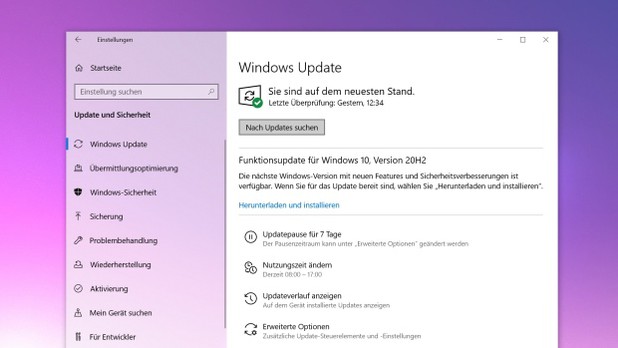
Windows 10 version 20H2 now available
Windows 10version 20H2 is now available. The innovations are manageable. First and foremost, the new Edge browser based on Chromium is now included. In addition, there have been some detailed changes in the appearance. Windows 10 20H2 is still not showing up for many users via Windows Update, but the current Media Creation Tool is already loading the Windows 10October Update. If you want it immediately, you will have to become active yourself.
Windows Update
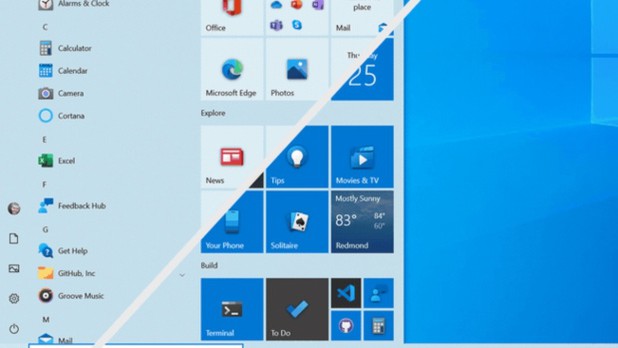
 With "Meet Now", users will be able to start video chats without having to download any software. Technically, this is done via Skype, but those who do not have the software installed can also conduct video chats directly via the Edge browser. During installation, Windows will in future ask for the purpose for which the PC is being used, so that the appropriate services for gaming or office computers can then be activated. The new Start menu for Windows 10 is not a completely new start, but a clever update. The trick is that the new start menu fits more harmoniously into the selected theme. For comparison, we show you the current Windows Start menu (bottom right) next to the new design (top left). Due to the dominant colour areas on the tiles, it looks very restless and the icons do not really come into their own.
Start Menu Comparison
 Also practical: 2-in-1 devices now automatically switch to tablet mode when the keyboard is removed, instead of asking the user to do so.In future, Alt + Tab can be used not only to switch between open programmes, but also through tabs in the browser, whereby all open tabs are also clearly displayed. An overview of the new features can be found in the video below.
Windows 10 Update Video
https://youtu.be/bD0jywkYCOI