

All innovations at a glance: Microsoft Office 2024 and its licensing
Inserting and deleting bookmarks in Word - how to do it!

Ready for the future of productivity? Dive into the world of Microsoft Office 2024 and its licensing and discover the brand new features that will take your business to the next level. From enhanced security measures to seamless integration with the Azure cloud, the new version promises a revolutionary experience for all business professionals. Be part of the growing community looking forward to the LTSC release and experience the power of Excel, Teams, SharePoint and more in a comprehensive office professional suite. Be amazed by the innovative solutions Microsoft has in store for businesses looking for efficiency and performance.
1. Microsoft Office 2024: The latest features at a glance
Microsoft Office 2024 brings a wealth of new features and innovations for companies of all sizes. The integration of Azure and cloud services enables seamless collaboration across the entire business community. With improved security measures and the use of AI, the new version of Office offers professional tools for efficient working. Particularly noteworthy are the enhanced capabilities in Teams, Excel and SharePoint, which increase productivity. The LTSC version ensures stability and continuity when using Office applications. The link with Surface devices and Windows optimises user-friendliness and performance. Microsoft Office 2024 redefines the way organisations can work and evolve – an exciting vision of the future for all Office users.
2. Microsoft Office 2024: Improved user-friendliness and efficiency
- Microsoft Office 2024: New features, improved usability and efficiency
- Optimising workflows and increasing productivity in companies
- Integration of Azure and cloud services for seamless collaboration
- New features in Excel, Teams and SharePoint for more effective work
- AI and cloud services for optimal performance and security
- LTSC version for companies and professional users
- Office 2024: More than just an office application, a comprehensive tool for the future of work
3. Microsoft Office 2024 and its licensing allow the following options for individual needs
- Microsoft Office 2024 offers innovative licensing options for businesses and professional users
- Integration of Azure and cloud services enables flexible adaptation to changing requirements
- New licensing option allows selection of required functions and tools for customised solutions
- Microsoft Office 2024 sets a new standard in workplace design
- Goal: To meet the challenges of the modern business world
4. Microsoft Office 2024: Integration of AI and cloud services for optimal performance
 The integration of artificial intelligence and cloud services in Microsoft Office 2024 brings a revolution for companies. The connection with Azure and SharePoint enables seamless real-time synchronisation of data, which boosts efficiency and increases security. The AI functions in Excel and Teams enable more precise analyses and forecasts. The integration of cloud services such as OneDrive and Microsoft Server simplifies collaboration in the business community. This new version not only offers improved performance, but also customised solutions for individual company requirements. By using Microsoft Office 2024, the future of work will be characterised by innovation, flexibility and optimal performance in the digital age.
5. The future of work with Microsoft Office 2024 – innovation and flexibility in one package
Microsoft Office 2024 is ground-breaking software that will help companies achieve new levels of performance in the digitalised world of work. The integration of AI and cloud services as well as improved security standards through individual licensing options offer optimum efficiency. The seamless integration of Teams, SharePoint and Excel enables smooth collaboration. Microsoft is setting new standards with customised offerings for Windows, Server and professional Office solutions. Surface devices complete the package and ensure an outstanding user experience. Microsoft Office 2024 redefines the future of work by combining innovation and flexibility in one comprehensive package.
People also ask
When is Office 2024 coming out?
When will Microsoft release Office 2024? Microsoft is expected to release Office 2024 in autumn next year. The company has already confirmed that the latest version of its Office suite will be launched with new features and improvements. Users can look forward to an optimised user interface, improved collaboration functions and updated applications. Office 2024 will also further optimise the performance and security of the software. It is expected that the new version will be available for both Windows and Mac operating systems. Microsoft is working intensively on the development and improvement of Office 2024 to meet the needs of users and create a seamless working environment. The exact release date is yet to be announced, but it is recommended to keep an eye on Microsoft’s official channels to stay informed about all updates and news.
How long is Microsoft Office valid?
Microsoft Office is available in different versions, with different licence terms depending on the type of licence purchased. It can be purchased as a software subscription or as a perpetual licence, which allows the software to be used indefinitely. In some cases, Microsoft Office is part of a cloud subscription with regular updates and online services such as OneDrive. It is crucial to check the licence terms carefully to ensure that the use is legal and appropriate.


OneNote: How to integrate a notebook into teams
OneNote: How to integrate a notebook into teams
Many still cope with everyday work without a OneNote notebook: you have an idea and jot it down on a piece of paper in between. You also scribble down the telephone number you want a colleague to call you back. You discover a great savings offer on the internet and write down the URL on a piece of paper … In no time at all you get lost among all these pieces of paper and in the end you can’t find anything anymore. But all those who have signed up under one of the packages of Windows 11 for example with the Microsoft Office 2021 Standard or Microsoft Office 365 Home have a tool at hand that makes this paperwork unnecessary: the OneNote notebook.
What is the OneNote notebook?
Word, Excel, PowerPoint and Outlook are familiar to anyone who works on a PC with Windows 11 Home, Windows 11 Pro or Windows 11 Pro N, Microsoft Office 2021 Home and Business or Microsoft 365 Family on a PC. But very few people know that the OneNote notebook is already installed there. This is a digital notebook that can replace calendars, notebooks and memos. Sketches, handwritten notes, graphics, pictures, lists and documents can be conveniently inserted and managed. Multimedia content such as e-mails, websites and videos can also be organised well with the OneNote notebook Since you can also save all content in a cloud, there is no danger of misplacing or forgetting anything.
OneNote as part of Teams
One of the components of the Microsoft Office suite such as Microsoft 365 Business Premium in the operating system Windows 11 Education or Windows 11 Enterprise is the communication platform Teams. OneNote is also integrated into this. Working with it facilitates many processes and is very simple: [/vc_column_text ]
Create a new notebook
- On the Office start page, click the OneNote icon on the left.
- Click on the button "+ New notebook".
- Enter the title for the notebook and confirm with "Create".
- You will be prompted to press the enter key to create a first section in the OneNote new notebook.
Share notebook
To work together, the OneNote notebook can be shared:
- In the web under OneNote open the Open the notebook, that you want to share.
- At "File" select "Share then select "Share with others".
- In the left column under "Share" you must "Invite people must be activated.
- In the field "To" enter the e-mail address of the person with whom you want to share the OneNote notebook.
- In the field below you can enter a short Note for the recipient.
- If you do not want the recipient to be able to edit the contents after sharing the OneNote notebook, you have to click on the blue link "Recipients can edit items" change the settings for the permissions.
- Send the invitation with "Share".
Exporting the OneNote notebook
For example, as a backup copy or to use the notes in another format, individual sections or even an entire OneNote notebook can be exported:
- In OneNote open the Open the page that you want to export.
- Click on " Export" in the "File " tab.
- Specify whether the computer should export only a section or the entire OneNote note book.
- Format for the export. You can choose between the OneNote format, PDF or Word.
- Click on "Export" and select a storage location.
Exporting a saved OneNote notebook
If the notebook is stored in a cloud or on OneDrive, for example, it must also be exported in order to continue working on it. This is how you proceed:
- With the Microsoft user account log in.
- In the navigation "More notebooks select.
- At "My notebooks click with the right mouse button on the corresponding notebook.
- A new menu window appears, in which click on "Export Notebook click.
- Set storage location
The PC automatically creates a zip file of the exported OneNote notebook. This just needs to be unzipped to use the notebook as usual.
Header image: ©monticellllo, stock.adobe.com


Microsoft Office Update 2021: What we already know
Microsoft Office Update 2021: What we already know
Millions of users work with Microsoft’s Office package every day. Excel, Word, Outlook and PowerPoint have become indispensable in both private and business applications. For 2021, the company has a number of innovations in store. In part, these updates are really practical and sensible, especially in the professional sector – but in part they are likely to cause annoyance. Here is everything you need to know about the Microsoft Office You need to know about the update.
This is what the new update brings with it
After the update, there will be two versions when you start the download: one for home use and one for business, but both versions will support both 32-bit and 64-bit.
- Office LTSC (Long Term Servicing Channel) for larger companies and government users.
- Office 2021 for private users and small businesses. Here, support has been shortened from seven to five years. In addition, Outlook, Word, Excel and PowerPoint can now only be used on a PC or Mac.
It is likely that the price of Microsoft Office will rise with the update. Users should expect a price increase of around 10 per cent on individual purchases, according to unconfirmed rumours. As already Microsoft Office 2016 and Microsoft Office 2019 there is no obligation to link the application to the internet after the update. So there is no need to take out a subscription or work via a cloud for the single purchase.

Some innovations in Microsoft Office
- Microsoft has announced new features in both Office 2021 for home users and Office LTSC for the corporate sector:
- Better Accessibility.
- Excel now gets functions like Dynamic Arrays and XLOOKUP
- Multiple apps can be used better thanks to the supported dark mode.
- Standard apps like Word, Excel, Outlook and PowerPoint get performance improvements.
- The new packages come with the Microsoft Teams app. In return, the Skype for Business client is no longer available.
Examples, with which service plus Microsoft binds customers
New Outlook functions:
In future, there will be wording suggestions when creating messages, and a new booking environment for conference rooms will also be available with additional functions. The new drop-down menu in the search area makes searching easier – a click switches between the current folder and the current mailbox. Messages from Outlook can now be shared directly with a person or channel in Microsoft Teams, and a new dictation toolbar, extended voice commands and automatic punctuation make composing messages easier.
Enhancements to the Teams function:
When sharing a PowerPoint file, the speaker view is also possible. With Microsoft Forms, one can start direct polls among the participants of a meeting In the Desktop Client, it is easy to return to the last places visited using the history menu, and depending on the administrator setting, telephone numbers can be masked in future, which leads to more Privacy anonymity.
Word becomes simpler:
Due to the revision of the editor, it is now easy to take over writing and spelling suggestions directly with a click and HEIC pictures from iPhones or iPads can also be inserted without conversion. For new documents, folders can be pinned withthe shortcut Ctrl+S , eliminating tedious searches for the correct location.
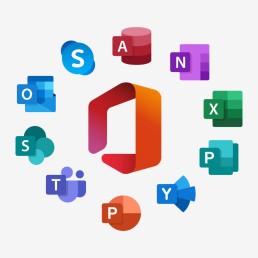
Summary of the changes in the Microsoft Office Update
- Microsoft has so far finally confirmed the following editions Office 2021 Standard and Office 2021 Professional Plus.
- These will come with OneNote and Teams delivered
- The packages are available as purchase licences and perpetual licences
- A price increase for Office packages and individual apps or products is to be expected.
- The Office versions are available for Windows and Mac.
- 32- and 64-bit editions are still available
Header image: © chrupka, stock.adobe.com

Office software: work more productively in the new year
Office software: working more productively in the new year
Perhaps it is only a matter of time before there is a legal regulation on working from home. Until then, the trend to move the office into one’s own four walls has been increasing anyway, at least since the Corona crisis. But whether at home or in the office – you can only be really productive with the right office software.
Be productive with these powerful 3 programmes
It is clear that no one types out quotations with a typewriter anymore. Bookkeeping and the creation of individual forms have also long been possible with the PC in the twinkling of an eye. It’s just a matter of using the right office software. It should not only be stable and compatible with other software. Up-to-date features and ease of use are also important All these conditions are fulfilled by these 3 office software products, with which everyone can be productive in the new year.
1: Several Office versions
Already since 1989, Microsoft Office has been the the Standard office software for PC and Mac. Since its first appearance, the office suite for business applications has received quite a few modernisations. But what is still included are the three basic programmes Wordfor word processing, Excel for spreadsheets and the presentation programme PowerPoint. In the meantime, a specialised Office version software is available for every need.
- Office 2019 - the tried and tested Office 2019 Home & Student is still one of the most practical office software for the home. It contains the three basic programmes and is available for both PC and Mac. If you buy the licence, it can be used on one device at a time, but you don't have to subscribe to it.
- Microsoft 365 Single - if several devices are to be supplied At the beginning of 2020, the Office platform was renamed from Office 365 to Microsoft 365. In addition to Word, Excel and PowerPoint, the "365 Single" version also includes the mail programme Outlook, OneNote for notes as well as the database software Access and the design programme Publisher (only for PC). The package also includes 1 terabyte of cloud storage via OneDrive and is available by subscription. This Office version can be used on several devices - including smartphones and tablets.
- Microsoft 365 Family - everything included This package has the same content as Office 2019 and Microsoft 365 Single, but can be used by up to six people on as many devices as they like - including 1 terabyte of cloud storage per person! Additional features such as arrival and departure notifications are installed in the Family Safety package.
- Microsoft 365 Business - the professional solution The Office business package includes all the features of the other packages and a few more to make working in the office even more productive. It is offered in the versions "Basic", "Standard" and "Premium", each with a subscription
2: Nuance Dragon for perfect speech recognition
Typing was yesterday – today letters, invoices, offers or forms are simply dictated. And the computer creates a perfect written reproduction in no time at all. This is made possible by office software with speech recognition. Like for example Nuance Dragon. While dictating, the text appears on the screen – about three times faster than typing and with up to 99 percent accuracy. Voice commands such as changing programmes are also carried out by the software without any problems.
3: Nuance Power PDF
Documents created in Word or Excel, for example, can be converted into a PDF document in no time – and the PDF programme can also convert them back into another file format Nuance Power PDF back into another file format. The software offers all functions to manage, share and save the files. The files can be easily converted into searchable documents – and can even be saved later as a PDF file Edit PDF. Plus: For operation, the multi-function bar is in Microsoft Office style, which eliminates a long training period.
Header image: © Rymden, stock.adobe.com
Office software: work more productively in the new year
Office software: working more productively in the new year
Perhaps it is only a matter of time before there is a legal regulation on working from home. Until then, the trend to move the office into one’s own four walls has been increasing anyway, at least since the Corona crisis. But whether at home or in the office – you can only be really productive with the right office software.
Be productive with these powerful 3 programmes
It is clear that no one types out quotations with a typewriter anymore. Bookkeeping and the creation of individual forms have also long been possible with the PC in the twinkling of an eye. It’s just a matter of using the right office software. It should not only be stable and compatible with other software. Up-to-date features and ease of use are also important All these conditions are fulfilled by these 3 office software products, with which everyone can be productive in the new year.
1: Several Office versions
Already since 1989, Microsoft Office has been the the Standard office software for PC and Mac. Since its first appearance, the office suite for business applications has received quite a few modernisations. But what is still included are the three basic programmes Wordfor word processing, Excel for spreadsheets and the presentation programme PowerPoint. In the meantime, a specialised Office version software is available for every need.
- Office 2019 - the tried and tested Office 2019 Home & Student is still one of the most practical office software for the home. It contains the three basic programmes and is available for both PC and Mac. If you buy the licence, it can be used on one device at a time, but you don't have to subscribe to it.
- Microsoft 365 Single - if several devices are to be supplied At the beginning of 2020, the Office platform was renamed from Office 365 to Microsoft 365. In addition to Word, Excel and PowerPoint, the "365 Single" version also includes the mail programme Outlook, OneNote for notes as well as the database software Access and the design programme Publisher (only for PC). The package also includes 1 terabyte of cloud storage via OneDrive and is available by subscription. This Office version can be used on several devices - including smartphones and tablets.
- Microsoft 365 Family - everything included This package has the same content as Office 2019 and Microsoft 365 Single, but can be used by up to six people on as many devices as they like - including 1 terabyte of cloud storage per person! Additional features such as arrival and departure notifications are installed in the Family Safety package.
- Microsoft 365 Business - the professional solution The Office business package includes all the features of the other packages and a few more to make working in the office even more productive. It is offered in the versions "Basic", "Standard" and "Premium", each with a subscription
2: Nuance Dragon for perfect speech recognition
Typing was yesterday – today letters, invoices, offers or forms are simply dictated. And the computer creates a perfect written reproduction in no time at all. This is made possible by office software with speech recognition. Like for example Nuance Dragon. While dictating, the text appears on the screen – about three times faster than typing and with up to 99 percent accuracy. Voice commands such as changing programmes are also carried out by the software without any problems.
3: Nuance Power PDF
Documents created in Word or Excel, for example, can be converted into a PDF document in no time – and the PDF programme can also convert them back into another file format Nuance Power PDF back into another file format. The software offers all functions to manage, share and save the files. The files can be easily converted into searchable documents – and can even be saved later as a PDF file Edit PDF. Plus: For operation, the multi-function bar is in Microsoft Office style, which eliminates a long training period.
Header image: © Rymden, stock.adobe.com
Instructions: Install Microsoft Office in 5 steps
Instructions: Install Microsoft Office in 5 steps

What versions of Microsoft 365 are available?
What versions of Microsoft 365 are available?
Installing Office 365 on a PC is simple, but a little confusing due to the subscription model. First of all, you should decide on an Office 365 package. Microsoft has put together two different packages for the different needs of users. There is also the Microsoft Home & Student 2019, which is available as a classic single purchase The Microsoft 365 packages come as Microsoft 365 Personal and as Microsoft 365 Family. Both packages include Word, Excel, PowerPoint, OneNote, Outlook, Access and Publisher. The Single subscription is only suitable for one user and provides 1 TB of cloud volume. The Family package can be used by up to six users and provides access to 6 TB of cloud storage.
Install Microsoft 365 in five steps – this is how it works:
First you have to log in with your Microsoft account, then you can get started. Microsoft 365 is only offered as a download. This means that you do not have a CD or DVD as a backup medium.
- On the website https://www.office.com/signin you can log in with the Microsoft 365 account you used to buy the product. If you have never registered here before, you have to create a new account. Next, you are redirected to a page where you enter the product key you received when you purchased the product.
- Once you have successfully logged in, you will find the „Install Office.“ box at the top of the page Click on this button to download and install Microsoft 365
- Before that, you have to select on the website whether you want to installthe programme for PC, Mac or a mobile device (such as smartphone or tablet).
- If the installation menu does not open automatically, you can start by double-clicking on the installation file.

5. Once you have confirmed that the installer is allowed to make changes to the device, the programme installs and you can use it.
How to uninstall Microsoft 365?
To uninstall Microsoft 365 again, you can download an appropriate uninstaller from Microsoft Download toolthat takes care of the uninstallation. Otherwise, you can remove the programme manually. At Windows 10 this is possible, for example, via the system settings.
Header image: © dennizn, stock.adobe.com

Save Microsoft Office document as PDF file
Save Microsoft Office document as PDF file
Whether it’s an invoice, a form to fill out or a list. Often it is not enough to simply save a document in Word format. If you want to send a document by e-mail, for example, it is advantageous to save it as a PDF on your hard drive. This alone has the advantage that the document will not contain any formatting errors when it reaches the recipient. But how does this work? In this step-by-step guide, we explain how to save a Microsoft Office document as a PDF file.
- Once you have finished writing your document, click on „File“ in the top left-hand corner of Word.
- Then click on „Saveas“.
- Now click on „Download as PDF„.
- Click on „Download“ again to successfully save the document as a PDF file.
You can't find a PDF entry under "Save as"?
Depending on the installed Office version, the order for saving may be different. If step number 2 does not appear or work for you, please proceed as follows:
- Click on „File“ in the top left-hand corner as before.
- In the new menu, click on „Export„.
- In the submenu that appears, click on the button „Create PDF/XPS document„.
- Now select the location where you want to save the PDF file and click on „Publish„.
Done!
Header image: © IB Photography, stock.adobe.com