
Windows 12: The next generation of operating systems - Are you ready?
Windows 10 support ends: Get ready for the exciting features of Windows 12!
Imagine how the new version of Windows 12 will revolutionise your PCs! With innovative features such as Copilot and improved security measures, Microsoft’s latest software will not only make your business more efficient, but will also have exciting deals and vouchers in store for you. Find out all about the exciting opportunities this new software offers for October and stay up to date with our newsletter! Get ready to dive into the future of operating systems and discover what the new version has in store for you!
1. Introduction: Windows 12 – The future of operating systems
Windows 12 will change the way companies work with computer programs. It has new features that will help people work better. CoPilot will make day-to-day work easier, whether you work in the office or from home. Companies can also benefit from great offers if they want to buy new computers or upgrade their old ones. The security features are very good so that important data is protected and people have confidence. Even old programmes will work well with Windows 12 so that everyone can use the new stuff easily. Look forward to the first reports and experiences that will accompany us into the future!
2. What makes Windows 12 special?
Windows 12 brings many new things that make working on the computer easier and better. One great new feature is the smart assistant, which helps you to complete your tasks faster. This helper can help you with many things and works well with programmes like Word and Excel that you may already know. There are also many special offers and discounts when you switch to Windows 12. Microsoft also ensures that your data is secure so that no unauthorised person can access it. You can continue to use old programmes that you already know without any problems. From October, you can look forward to exciting news and information that will show you how to get the most out of Windows 12.
3. The new user interface: A fresh design
The Windows 12 user interface looks really cool and new! It has a clear arrangement of windows and icons that makes it easy to find everything. Microsoft has a new helper, Copilot, which helps you complete tasks faster by giving you good tips as you work. The software is made to be easy to use and it adapts to your needs. Companies can get great deals and vouchers to buy the latest versions of Windows for cheap. Plus, the Office programs are well integrated into Windows 12, which helps you work better and more securely. Windows 12 protects your data so your personal information is always safe. Don’t miss the chance to be part of this exciting innovation and sign up for the newsletter today to get the best deals!
4. Performance improvements in Windows 12: Faster and more efficient
Windows 12 makes your computer much better and faster! With this new version from Microsoft, you can do everything much easier. There’s a new helper called CoPilot that helps you use your computer better. This makes everything much easier and faster. There are also great offers for companies so that they can make better use of their programmes. You also get cool vouchers and emails with the best offers. Security is also important so that your important data is well protected. With all this new stuff, you can do your tasks much faster and easier. Whether you’ve done a lot with your computer before or you’re new to it, Windows 12 will help you do everything better and have more control over your computer!
5. Security features in Windows 12: Protection at the highest level
Windows 12 has many new security features to ensure that your data is well protected. Microsoft has made sure that everything remains secure. There is a helpful co-pilot that not only helps you work, but also ensures that everything is secure. For companies, there are many good security measures that protect against the latest threats. There are also regular updates that ensure everything is always up to date. If you subscribe to the newsletter, you can even get special offers and vouchers that make managing devices easier. Windows 12 is more than just a programme; it keeps your information safe and makes working more enjoyable. Get ready for a new, secure time in the digital world!
6. Windows 12 and the cloud: Seamless integration for modern users
Windows 12 makes everything easier and better! It connects your computer to the cloud, which is like a big storage on the internet. This allows you to work much better and focus on what’s important. Whether you work in a small company or a large one, Windows 12 has the right solutions for everyone. You can also easily send your data back and forth between your computer and the cloud. This makes everything secure and flexible! In October, there are even special offers and vouchers that you can use to save money when buying programmes such as Office. Get ready to discover the great benefits of Windows 12 and digitally enhance your workplace! The future is exciting!
7. The compatibility of Windows 12: old software, new possibilities
Windows 12 is a new computer programme that offers many exciting possibilities for businesses and people at home. With this new version, Microsoft has ensured that old programmes and new apps can work well together. This means that users can continue to use their old favourite programs while taking advantage of the new features and security updates. A special helper, the „Copilot“, supports users and makes work easier. Many software companies now have the task of improving their programmes for Windows 12. They can offer great deals and vouchers. Thanks to better technology and the connection to the cloud, data can be processed much faster. This helps companies to work better. These new developments ensure that users can not only work more securely, but also in an environment that is well prepared for the future.
8. First impressions and experiences of users with the new Windows.
The first opinions of people who have tried Windows 12 are super positive. Many are enthusiastic and think that the new software is really great. The new Copilot feature in particular helps them with many everyday tasks and makes it easier to use the computer. There are also great offers that appeal to many companies and users. You can use vouchers and benefit from special promotions, which shows that Microsoft is listening to what users need. The security of Windows 12 is also much better and the new protection measures give a good feeling. With the new design and improved Office programmes, Windows 12 is not only very suitable for computers, but also for modern offices. Many people are eager to see what’s coming next, and keep up to date with news through newsletters
9. Are you ready for the new Windows?
Windows 12 is a new computer programme that brings lots of cool stuff for everyone who uses computers. It has a new helper that we call Copilot. This helper makes it easier to work with programmes like Word and others so we can get our tasks done faster. With Windows 12, Microsoft has made sure that everything is secure so that we are protected from malicious attacks on the Internet. When Windows 12 launches in October, there will also be special offers and vouchers that we can take advantage of. In addition, everything runs faster and better because the new tools manage computer resources well. Companies can easily add their old programmes to Windows 12. The look of Windows 12 is modern and fresh, so it looks good and is easy to use. If you want to learn more about what’s new, check out our newsletter and discover how Windows 12 can make your computer better!
When will Windows 12 be released?
Windows 12 will probably not be released until 2024. Microsoft needs a lot of time to develop its programmes. The last versions, such as Windows 10 and Windows 11, took many years to add new things and improvements. It is thought that Microsoft will continue to listen to what users and developers have to say in order to make Windows 12 better. There are already many rumours about new functions, such as better games and easier operation. Windows 12 could also offer more opportunities to work in the cloud, which is becoming increasingly important today. It is not yet certain whether Microsoft will offer a test version before the official launch so that users can try out the new functions. An exact date for when Windows 12 will be released has not yet been set, but many people are eagerly awaiting it.
How much RAM do you need for Windows 12?
For Windows 12, you need enough RAM for your computer to work well and quickly. Microsoft says that you should have at least 8 GB of RAM. This allows you to surf the internet, work with programs such as Word and watch films. However, if you want to do more difficult things, such as editing pictures, cutting videos or playing new games, 16 GB of RAM is better. Then the computer can do several things at the same time and remains stable. For people who want to use the computer very quickly and heavily, such as gamers, 32 GB RAM or more is even better. This makes everything run even faster and you can use many programmes at the same time. This way, the computer remains good for the future and can use new programmes without any problems.


Windows 10 support ends: Get ready for the exciting features of Windows 12!
Windows 10 support ends: Get ready for the exciting features of Windows 12!

1. Introduction: Windows 10 support ends – What does this mean for you?
Saying goodbye to Windows 10 is not the end, but the beginning of something new with Windows 12. Windows 12 brings a lot of cool new things with it! Microsoft wants to make it easier and better to use so that both businesses and people at home can enjoy it. Installation will be easier and updates will be faster so that everything works well. Windows 12 runs on the latest computers, which are much faster, which means that everything runs much better. In addition, the Office programme will be well integrated into Windows 12 so that we can work even better. From January, there will be a lot of important information to help us switch to Windows 12. This will also allow companies to plan well if they want to buy the Professional version. Even though Windows 10 will no longer be supported, we are looking forward to the exciting new features of Windows 12 that will bring us a great future!
2. The key features of Windows 10 that you might miss
Windows 10 was a popular computer programme that many people enjoyed using. It was stable and had many features that users liked. Companies in particular liked it because it worked well with Microsoft Office and was fast. From January, Windows 10 will no longer be supported. This means that there will no longer be any new security updates or information. Installing updates could also become more difficult, especially if you have old versions. It’s a good idea to look around for other programmes, as there are new features in Windows 12 that could replace some of the things you’re used to. If you want to switch to a new program, find out about new licences or downloads in good time so that everything works well. The future of Microsoft brings exciting new features that will make computing easier and better for everyone.
3. A look at the new features of Windows 12
Windows 12 brings many great new things that will make working on your computer even better. There are new technologies that will help you get things done more easily. If you work with others, the new Office programmes will make it much easier. One important point is that Windows 12 works particularly well with certain parts of the computer, the Intel processors. This means your computer will be faster and use less power. From January, you will be able to download and install Windows 12 very easily. It will be super easy! The new online services are also exciting for companies and for you at home. It’s a good idea to start thinking now about how you can buy a licence for Windows 12 so you can start using the new features quickly. The future with Windows 12 looks very promising and will offer you many new possibilities!
4. How to prepare for the switch from Windows 10 to Windows 12
Switching to Windows 12 will be an exciting journey that will bring many new opportunities for your business. Firstly, you should check out what new things Microsoft is offering. To ensure a smooth transition, it is important that your computer has the right requirements, such as an Intel processor. You also need a good internet connection to download and install the new features. Remember to take time to transfer your Office programmes and data so that everything is ready online. Also stay informed about important information from Heise and other sources so that you don’t miss anything important. If you switch in January, you can take advantage of the latest features of Windows 12. Also consider buying the professional version to get more support. So prepare yourself well – there are exciting times ahead!
5. The advantages of Windows 12 compared to Windows 10
The switch from Windows 10 to Windows 12 brings many exciting benefits to discover. Microsoft has added many new things that make working much easier and better. For example, everything runs faster because computers can now handle Intel processors better. In addition, you can now use Office online, which is much more flexible. With the update, companies not only get the latest security functions, but also special programmes that are important for modern work. The installation of Windows 12 is very simple and all the important information is easy to find. As support for Windows 10 ends in January, it is important to upgrade to Windows 12 in good time. If you buy the Professional version, you have access to all the new tools and features that help you work even better and faster.
6. Tips for a smooth migration from Windows 10 to Windows 12
Moving from Windows 10 to Windows 12 can make your computing experience much better. First, you need to make sure your computer meets the new requirements for Windows 12. For example, it needs a processor that is at least 1 GHz fast. It’s also good to check the installation information and downloads on the Microsoft website. Before you update, you should back up your important data so that you don’t lose it. You also need to check whether your most important programmes, such as Office, also work for Windows 12. Microsoft also offers help to make the transition easier for companies. If you follow these steps, the switch will be easier and you’ll be able to use the new features of Windows 12 quickly
7. An exciting look at the future with Windows 12!
Windows 12 is coming soon and it brings with it many exciting new features that will make your work on the computer easier. Microsoft has listened carefully to what users want and has developed cool new features that will make Windows even better. You can download it easily and the first updates will be available in January. For businesses, Windows 12 will work faster, especially on computers with Intel processors, which can now calculate faster. This means that you will be able to use programmes such as Word better and everything will also run more smoothly when surfing the internet. The information about the new possibilities is already available so that you are well prepared. Windows 10 will soon no longer be supported, and that makes room for new ideas and programmes that can make your digital experience much better. Consider using Windows 12 and experience how your computer can get better!
How long can you still use Windows 10?
Windows 10 is a computer programme that many people use. There is help for this from Microsoft, which comes in different steps. Microsoft has said that support for Windows 10 will end on 14 October 2025. Until that day, there will continue to be important updates that make the computer more secure. After this date, there will be no more new updates. This means that the computer can then be attacked more easily and could have problems. You can continue to use Windows 10 after 14 October 2025, but this is not recommended. Without the important updates, the computer can become dangerous because it can be attacked by malicious programmes. Also, some programmes that you need on your computer may no longer work properly. It is better to find out in good time how to switch to Windows 11 or another programme. This will keep your computer safe and working well. It’s best to plan all this before the help for Windows 10 ends so that there are no problems and the switch is easy.
Does it make sense to switch to Windows 11?
Switching to Windows 11 can make sense for many people, depending on what they need and what computers they have. Windows 11 looks different and has a new start menu that is in the centre. It also helps to do multiple things at once, making it easier to work. Microsoft has also made sure that the computer is faster and more secure, which is especially important for companies. Another cool feature is that you can make better use of the latest games and programmes. For example, there is something called DirectStorage and Auto HDR, which make games run smoother and faster. Also, Microsoft Teams, a programme for talking and working with others, is now right in the bar, which makes communicating easier. But you should also make sure that your computer can support Windows 11. Older computers or devices that don’t fit could cause problems. If someone is happy with Windows 10 and doesn’t need the new features, they can stick with it for the time being. In the end, the decision depends on how you want to use the computer.
Windows 11's product range: Discover the entire product range at a glance!
Windows 11's Produktreihe: Entdecken Sie die gesamte Produktreihe im Überblick!
 Hidden in the vastness of the digital universe is a groundbreaking innovation: Windows 11! From operating system evolution to smooth updates, here’s everything you need to know about Windows 11 to optimise your PCs and business servers. Available in June, with an improved design and new features, Windows 11 is the ultimate version for educational institutions and businesses. Find out all about Windows 11’s product range, how to install and download this innovative here.
1. Introduction to the wonders of Windows 11
Dive into the fascinating world of Windows 11 wonders with a variety of versions for businesses and educational institutions. Whether online download or classic DVD installation, Windows 11 offers comprehensive updates for PCs and servers. Organisations can look forward to powerful features that will boost their productivity. With an upgrade to Windows 11, you not only get a new operating system, but also customised solutions for your specific requirements. Learn more about the different editions of Windows 11 and discover how Microsoft is shaping the future of the operating system
2. What’s new in Windows 11
Windows 11 is a new computer programme that has lots of great things to make your computer even better and easier to use. It has better security and special things for schools. It’s easy to install, either update online or buy the DVD. Windows 11 works well on computers, servers and other devices. Many people and companies are excited about this upgrade from Microsoft.
3. Windows 11 functions in detail
Windows 11 is a new computer system with lots of great things in it. It has better security and looks nice. It’s easy to install in June. It’s good for companies and schools because it has special things for them. You can buy it online or as a CD. Get Windows 11 and enjoy the new things it offers
4. The diversity of the Windows 11 product range
Immerse yourself in the diversity of Windows 11’s product range, which has something to suit every user. With Windows 11, Microsoft has created an impressive range of versions, from PCs to servers. Whether for educational institutions with the Education Edition, for companies with the Enterprise version or for private users – Windows 11 is versatile and powerful. Installation is simple, whether online as a download or on DVD. Regular updates ensure that your operating system is always up to date. Available in June, you can buy Windows 11 and benefit from the many features that will revolutionise the way you work. Discover the possibilities that this innovative software has in store for your digital life.
5. Windows 11 for different device types
Windows 11 offers an impressive range of customisation options for different device types. Whether on PCs, laptops, servers or tablets – Microsoft’s operating system is versatile. Companies can find customised solutions with special versions such as Windows 11 Education or Enterprise. Windows 11 can be installed both online and via DVD, and the updates always keep the system up to date. Available since June, users can purchase the upgrade and benefit from the numerous new functions. Immerse yourself in the fascinating world of Windows 11 and discover the optimised user interface and improved performance for your individual needs
6. Tips and tricks for using Windows 11
Small tips and tricks can work wonders for using Windows 11 efficiently. From faster access to important functions to optimising the user interface, there are numerous ways to improve the user experience. Learn how to optimally configure and personalise your operating system to get the most out of Windows 11. Discover hidden functions and shortcuts that can make your day-to-day work easier and increase your productivity. With the right know-how, you can utilise the full potential of Windows 11 and complete your daily tasks even more efficiently. Immerse yourself in the fascinating world of this operating system and familiarise yourself with the tips and tricks that will help you get the most out of Windows 11.
7. Immerse yourself in the fascinating world of Windows 11!
Immerse yourself in the fascinating world of Windows 11! With its innovative user interface and powerful functions, the operating system inspires both private users and companies. The diversity of the Windows 11 product range offers customised solutions for every need – from education to enterprise editions. Available in June, Windows 11 can be conveniently purchased online or as a DVD version for traditional installations. Updates and upgrades ensure regular improvements, while server and PC integration guarantees optimal flexibility for businesses. Microsoft continuously provides information and tips for smooth installation and use. Discover the latest version of Windows and experience the future of the operating system up close!
Does it make sense to switch to Windows 11?
It can be a good idea to upgrade to Windows 11 because it has a lot of new things that are great. Windows 11 looks different from the old Windows and is easier to use. It’s also supposed to be faster and you can now use Android apps on it. If you like trying out the latest things and want to benefit from the new features, Windows 11 could be good for you. But not all old computers can use Windows 11 because they might not be powerful enough. You also need to check whether your programmes work with Windows 11. Whether it makes sense for you to switch to Windows 11 depends on what exactly you need and want.
Windows 12, the future is here: Learn all about Windows 12!
Windows 12, the future is here: Learn all about Windows 12!

Immerse yourself in the world of the new Windows 12 operating system! In our article, we present all the exciting features and impressive innovations that Microsoft has unveiled this year. Whether you’re a computer expert or a technology enthusiast, you’ll find helpful tips, practical tools and a comparison of the new version with its predecessors. Stay up-to-date and subscribe to our newsletter for all the latest information about Windows 12.
1. The latest features of Windows 12
With Windows 12, Microsoft has created an operating system that makes the competition look old. The new functions set new standards and inspire computer users worldwide. The innovative image editing tool is particularly impressive. With just one click, users can transform their photos into professional quality. A comparison with other versions also clearly shows that Windows 12 is the future. The update is a milestone and exceeds all expectations. The integration of artificial intelligence makes work more efficient and easier. Thanks to the improved security measures, users can sit back and relax. Cloud integration ensures seamless connections and flexibility. Windows 12 is not just another update – it’s a revolution. Look forward to a completely new experience!
2. Improved usability in the new operating system
The intuitive user interface of Windows 12 simplifies interaction for users of all levels. The redesigned Start bar provides quick access to important apps and programs, while customisable widgets provide information at a glance. With the improved Task Manager, you always have an overview of running processes and resource utilisation. The optimised search tool not only searches locally stored files, but also integrates online results from Google for comprehensive search results. The new update function ensures smooth updates, while the improved security system proactively combats threats. Windows 12 sets the standard for ease of use and efficiency, making it the essential operating system for modern computing. Experience the seamless integration of functions and the effortless operation of an innovative system. Windows 12 – your key to a new dimension of digital work and entertainment
3. The performance optimisation of Windows 12
Windows 12 performance optimisation offers users a breakthrough experience. Through innovative technologies, Microsoft is continuously optimising this operating system to ensure smooth and efficient performance. With improved responsiveness and faster load times, computing productivity is taken to a new level. Multitasking becomes effortless as Windows 12 manages resources more intelligently, allowing you to work seamlessly. These performance enhancements are especially essential in today’s digital world, where time savings and efficiency are critical. Users can rely on Windows 12 to remain stable and powerful even when performing demanding tasks. Whether editing images, videos or large documents, Windows 12 sets new standards in speed and reliability
4. The integration of artificial intelligence
Windows 12 opens up new horizons through the advanced integration of artificial intelligence. This groundbreaking operating system from Microsoft revolutionises the interaction between user and computer. With the help of intelligent algorithms, Windows 12 continuously learns to better understand and apply individual needs. The combination of human intuition and machine precision enables an optimised way of working and a personalised user experience. The integration of artificial intelligence in Windows 12 increases efficiency and raises productivity to a new level. Users benefit from smart functions that make everyday work easier and make working with the computer more intuitive. Windows 12 impressively demonstrates how innovation and technology go hand in hand to shape the future of digital working.
5. The security measures in Windows 12
Advanced security measures are a key element of Windows 12, which is known for its robust defence against cyberthreats. Microsoft has focused heavily on strengthening privacy policies and providing regular updates to address potential security vulnerabilities. An important new feature is the integration of biometric authentication methods such as facial recognition and fingerprint recognition, which make access to the operating system even more secure. In addition, intelligent firewalls and anti-virus programmes ensure that malware has no chance of penetrating your system. With Windows 12, users can work with peace of mind and protect their data, as Microsoft is consistently working to create a secure and trustworthy computing environment
6. Windows 12 and cloud integration
In the digital age, seamless integration with the cloud is crucial. Windows 12 sets new standards here by enabling a smooth connection to cloud services. The operating system offers innovative tools to store and access files and data securely and efficiently in the cloud. The close connection to various cloud platforms such as Google Drive or Microsoft OneDrive makes collaboration and data synchronisation child’s play. Users can access their content from anywhere and share it effortlessly. Windows 12 revolutionises the way we manage and share our data by seamlessly integrating the benefits of the cloud into everyday working life. With Windows 12, the cloud becomes not just another storage location, but an integral part of the digital workplace.
7. Compatibility with different devices
Windows 12 boasts impressive compatibility with a wide range of devices, making it a versatile and flexible operating system. Whether on your computer, laptop or tablet, Windows 12 adapts seamlessly and offers a smooth user experience on any screen. Thanks to the new version, connections to external devices such as printers or cameras are also effortless and efficient. This allows you to continue your work without interruption and switch seamlessly between different devices without compromising on performance or functionality. With Windows 12, you’ll experience a new level of device compatibility that gives you more freedom and flexibility in your digital workday.
8. Windows 12 – An exciting new era for users!
With Windows 12, Microsoft is entering a whole new era in the world of operating systems. The impressive features and improved usability make Windows 12 an indispensable tool for every computer user. The integration of artificial intelligence enables even faster and more efficient use, while the security measures strengthen user confidence. Cloud integration opens up completely new possibilities in terms of flexibility and storage space. Windows 12 is not only compatible with various devices, but is also a milestone for the future of gaming. With its environmental friendliness, Microsoft is setting an example for sustainable behaviour. Overall, Windows 12 presents itself as an innovative software that offers users an unrivalled experience.
When will Windows 12 be available?
No official announcement has yet been made about the release of Windows 12. Microsoft has not yet released any concrete plans or information regarding a possible release date for Windows 12. It is important to note that Microsoft regularly releases updates and new versions of its operating system, but currently there is no official confirmation about the development or release date of Windows 12. It is recommended to follow official announcements from Microsoft or trusted sources to stay informed about any future releases. To date, Windows 10 remains Microsoft’s current operating system, and users can continue to benefit from updates and improvements to this system.
What will it cost?
Windows 12 is expected to have different price points depending on the edition. It is expected that the basic version of Windows 12 will have a similar price to Windows 11, which is around €49.95. However, the Pro version of Windows 12 could be more expensive, costing around 149.95 euros. It is also possible that Microsoft will introduce different subscription models where users pay regularly to get access to the latest features and updates. It is important to note that these prices are only estimates and may change until the official release of Windows 12. Microsoft could also offer special offers, discounts or bundle deals to incentivise purchases. Overall, the price of Windows 12 is expected to be competitive to appeal to both existing and new users.
OneNote: How to integrate a notebook into teams
OneNote: How to integrate a notebook into teams
Many still cope with everyday work without a OneNote notebook: you have an idea and jot it down on a piece of paper in between. You also scribble down the telephone number you want a colleague to call you back. You discover a great savings offer on the internet and write down the URL on a piece of paper … In no time at all you get lost among all these pieces of paper and in the end you can’t find anything anymore. But all those who have signed up under one of the packages of Windows 11 for example with the Microsoft Office 2021 Standard or Microsoft Office 365 Home have a tool at hand that makes this paperwork unnecessary: the OneNote notebook.
What is the OneNote notebook?
Word, Excel, PowerPoint and Outlook are familiar to anyone who works on a PC with Windows 11 Home, Windows 11 Pro or Windows 11 Pro N, Microsoft Office 2021 Home and Business or Microsoft 365 Family on a PC. But very few people know that the OneNote notebook is already installed there. This is a digital notebook that can replace calendars, notebooks and memos. Sketches, handwritten notes, graphics, pictures, lists and documents can be conveniently inserted and managed. Multimedia content such as e-mails, websites and videos can also be organised well with the OneNote notebook Since you can also save all content in a cloud, there is no danger of misplacing or forgetting anything.
OneNote as part of Teams
One of the components of the Microsoft Office suite such as Microsoft 365 Business Premium in the operating system Windows 11 Education or Windows 11 Enterprise is the communication platform Teams. OneNote is also integrated into this. Working with it facilitates many processes and is very simple: [/vc_column_text ]
Create a new notebook
- On the Office start page, click the OneNote icon on the left.
- Click on the button "+ New notebook".
- Enter the title for the notebook and confirm with "Create".
- You will be prompted to press the enter key to create a first section in the OneNote new notebook.
Share notebook
To work together, the OneNote notebook can be shared:
- In the web under OneNote open the Open the notebook, that you want to share.
- At "File" select "Share then select "Share with others".
- In the left column under "Share" you must "Invite people must be activated.
- In the field "To" enter the e-mail address of the person with whom you want to share the OneNote notebook.
- In the field below you can enter a short Note for the recipient.
- If you do not want the recipient to be able to edit the contents after sharing the OneNote notebook, you have to click on the blue link "Recipients can edit items" change the settings for the permissions.
- Send the invitation with "Share".
Exporting the OneNote notebook
For example, as a backup copy or to use the notes in another format, individual sections or even an entire OneNote notebook can be exported:
- In OneNote open the Open the page that you want to export.
- Click on " Export" in the "File " tab.
- Specify whether the computer should export only a section or the entire OneNote note book.
- Format for the export. You can choose between the OneNote format, PDF or Word.
- Click on "Export" and select a storage location.
Exporting a saved OneNote notebook
If the notebook is stored in a cloud or on OneDrive, for example, it must also be exported in order to continue working on it. This is how you proceed:
- With the Microsoft user account log in.
- In the navigation "More notebooks select.
- At "My notebooks click with the right mouse button on the corresponding notebook.
- A new menu window appears, in which click on "Export Notebook click.
- Set storage location
The PC automatically creates a zip file of the exported OneNote notebook. This just needs to be unzipped to use the notebook as usual.
Header image: ©monticellllo, stock.adobe.com

Windows 11 installation already possible!
Windows 11 installation already possible!
Prepare the system
For the installation to be Windows 11 Installation is possible, the PC must fulfil a number of requirements. Ideally, the system is prepared in advance to avoiddifficulties later on. Step 1: Microsoft has noticeably tightened the hardware requirements. They should therefore be checked before installation. This works either by checking individual components or with the help of the official Microsoft tool PC Health Check. Step 2: If you want to install Windows 11, you should first install all updates. Ideally, both for the hardware components and for the software used. Step 3: Before the upcoming update, it makes sense to clean up the system. Although Windows 10 does much of the work, unnecessary programmes can be a potential source of errors during the upgrade. Step 4: The most important step from a major upgrade is aback-up. If something goes wrong during the Windows 11 installation despite all the preparatory work, the back-up can be restored.
Windows 11 installation is already that easy!
The Windows 11 installation will be available for Windows Insiders long before 5 October 2021. For all others, delivery will be staggered. Those who have prepared their system and decided to install itonlyneed afew steps to be able to use the new operating system. However, it is important that the hardware requirements are met so that the Windows 11 installation can succeed. 1. Go to the „Updates and Security“ section in the Windows settings and click on the „Windows Insider Programme“ entry. 2. Log in with your personal Microsoft account. 3. Select the „Release Preview Channel“, whereby a subsequent restart is necessary. 4. After waiting a moment, the update for the Windows 11 installation appears under „Update and Security“. 5. After the installation, switch to the „Windows Insider Programme“ again and click on „Stop receiving pre-release versions“. This will install only the regular Windows 11 updates in the future.
How is Windows 11 better than Windows 10?
Since Windows 10 is considered solid and stable, many users struggle with the decision: is it really worth installing Windows 11 early? It is a big step, as Microsoft shines with anew Windows 11 design and has implemented operating innovations. However, Win 11 is not only visually more modern – it also integrates numerous improvements.
- Optics: Those who opt for Windows 11 will benefit from a modern modern user interface. On the one hand, these new visual aspects are intended to look more attractive, but on the other hand they are increasingly designed for user-friendliness.
- Innovations: Numerous changes in the code have eliminated old burdens The new Windows 11 installation also includes the innovations already integrated in Windows 10 21H1 and goes a step further technically technically one step further.
- Speed: The operating system has become faster, whereby the better performance is also related to the high demands on the hardware components hardware components.
- Autostarts: Programmes that are run via autostart can be annoying and affect performance. Therefore, the new Windows version actively warns the user should this be the case.
- App Store: The new app store has been modernised and allows Android apps to run.
- Context menu: The new context menu appears airier and more manageable and has been noticeably adapted in terms of user-friendliness.
- Copy paths: Anyone who regularly copies paths will benefit from the simple copy functionwhich replaces annoying intermediate steps.
- Multi-window management: The management of multiple windows has been significantly improved and facilitates the use of different software instances.
- Windows Terminal: The Windows Terminal is finally included in the operating system, combining the command line, PowerShell as well as the Azure Cloud Shell. The simplifies handling.
- Animations: The new animations are closely related to the visuals – they look more impressive, sophisticated and fun to use.
- Settings app: The Settings app has also been revamped and now uses its full potential. The app itself has been polished and is more functional.
- Sound Dialogue: The new sound dialogue of the Windows 11 installation makes it easier to adjust the volume and screen brightness.
How long will Windows 10 be supported?
Those who do not yet want to or cannot switch to Win 11 currently have the option of continuing to use Windows 10. Microsoft will officially support the operating system until 2025. This means that incompatible PCs still have four years until the switch is finally necessary.
Header image: © monticellllo, stock.adobe.com
Test Windows 11 in the browser
Test Windows 11 in the browser
In the Windows Insider Programme, Microsoft’s new operating system can already be tested in the browser, although it is not yet officially on the market. Of course, that’s tempting. But it takes a lot of effort to get into the Insider Programme. But give up because of that? Never give up! We reveal the tricks with which you can also test the system with a Windows 11 download!
This is Windows 11
Until a while ago, Microsoft still announced that there would be no real Windows 10 successor, but that there would only be updates. Now, however, Windows 11 is coming onto the market, in all likelihood at the end of 2021 – and users are curious to see what news it has in store! A few things have already become known. For example, instead of the large Windows logo on the desktop, a standard wallpaper now appears as the background. Some applications and features are also new. The floating taskbar, for example, rounded corners on the icons, animated command executions in the Info Centre, and much more. The operating system is supposed to be significantly faster than its predecessor Windows 10, run stably and make working on the PC easier. In addition, the often unloved tiles have been reduced to a minimum and can even be removed completely. All in all, the Windows 10 successor is probably a successful coup by Microsoft – even if there seem to be a few disadvantages. There are reportedly problems with Windows Explorer, and the hardware requirements are quite demanding. Those who still have an older PC should think about buying a new one now.
How to test Windows 11 in the browser?
Officially, there is only a pre-release version that can be tested via the Windows Insider Programme. Annoying – if it weren’t for a clever developer who has made the Windows 11 interface available for testing in the browser on the basis of the JavaScript library React. It is true that the complete Windows 11 cannot be tried out here. But some functions can be controlled so that you can get a first impression of the new operating system. On GitHub you can already see the user interface of the Windows 10 successor. Some pictures in the gallery below show what is possible with Windows 11 and how the fresh design comes across. Clicking on one of the pictures opens a new tab with the picture in large format. And this is exactly where you can download the whole thing to test one or the other Windows 11 function. For example, you can try out the Start menu and the search function. You can also access the Store with a mouse click, and even Edge already works in the pre-release version. A little treat: as with the „real“ version, the widgets can also be moved to the left on the desktop. Of course, not everything works yet. The new settings are not yet activated, nor is Windows Explorer. And the Info Centre still appears in the old style.
Download in the Windows Insider Programme
If you want to test the real beta version, you can start the Windows 11 download as an Insider. The individual steps to do this:
- Register at insider.windows.com.
- Sign in with your existing Microsoft account or create a new account.
- Check the box to agree to the terms of use.
- On the next page, click on the „Start Flighting“ box.
- In the Windows 10 settings, go to „Update and security“.
- Click on „Windows Insider Programme“ at the bottom left.
- Select the plus symbol to link the Windows Insider account with Windows 10.
- Select the corresponding e-mail address and click „Next“.
- Click on the grey field under „Select your insider settings“.
- Now select „Dev Channel“ in the window to go to the beta version of Windows 11.
- Next, go to Windows Update and select „Check for updates“.
- The Windows 11 preview can now be downloaded and installed.
Header image: © Ascannio, stock.adobe.com
What the Windows 11 operating system brings
What the Windows 11 operating system brings
Actually, Windows 10 was supposed to be the last operating system that Microsoft wanted to launch. Instead of a real Windows 10 successor, there were only to be updates, according to the company. But now everything has turned out quite differently. With the new Windows 11, Microsoft wants to erase all the errors and unpopularities of some of the predecessor systems and at the same time combine all the advantages from Windows 7 to Windows 10 in a compact way. Has it succeeded? We put the strengths and weaknesses through their paces!
What is new about the successor to Windows 10?
Windows 7 was one of the most popular operating systems. Its successor Windows 8, on the other hand, left some users in sheer despair. Above all, the Start menu with its dominant, screen-filling tiles was considered annoying by most. With the Windows 10 upgrade, the tiles were still there. But firstly, they were not as big, and secondly, the „small tiles“ could be removed with a few clicks in the context menu commands. Windows 11, on the other hand, now comes with a completely new user interface – without any tiles at all. The start menu floats above the taskbar and can also be placed in the middle of the desktop. Frequently used programmes, recently used files and system controls are clearly arranged in the upper area of the Start menu. Windows 11 does without the pre-installed Skype altogether; Microsoft Teams is favoured instead. The icons for programmes or the Start button can be placed on the user interface either in the middle of the taskbar or left-aligned – just as you prefer. Dark and light modes are still available for the screen. The distinctive Windows logo in the middle is now missing. Instead, Windows 11 comes with a new standard wallpaper. The widgets from Windows Vista are also new or revived. Here you can choose to have news from all over the world, exotic food trends or the current weather displayed as information snippets or in full-screen view. And: The widgets are open to developers, so that any programme can be integrated relatively easily.
Strengths and weaknesses of Windows 11
The new operating system is clearly more than a simple Windows 10 upgrade. But like everything new, the Windows 10 successor has its strengths and weaknesses. Where exactly the strengths and weaknesses lie:
Windows 11 plus points
- Up-to-dateness: The operating system runs stably and noticeably faster than its predecessor. Both the task manager and the virus protection are state-of-the-art. Quick start mode, Explorer copy dialogue and engine as well as Windows X menu are practical tools.
- Design: The centrally placed icons with rounded corners in the taskbar look modern. Unnecessary apps have disappeared from the user interface, the standard wallpaper as background gives a refreshing new image.
- Freedom of choice: Some users may not like some of the visual innovations. No problem – almost everything can be deactivated and/or displayed and arranged as usual, as with older operating systems.
- Speed: As already mentioned, Windows 11 is considerably faster than its predecessor. And this applies to the overall performance. Both programmes and applications such as YouTube or extensive websites can be opened and consumed smoothly. A new function also contributes to the speed: A warning is issued against programmes that start unnoticed in the background. They can then be deactivated by clicking on an automatic pop-up window and in the settings.
- Window arrangement: As with Windows 7 and Windows 10 Upgrade from 2009 and 2015, windows can be dragged to the edge of the screen using „Aero Snap“ and fixed there with 50 percent screen size. With „Snap Assist“, other open windows can also be displayed in a large preview for the other 50 per cent of the screen. In addition, the windows can be scaled to 25 percent of the screen and dragged into a corner. By mouse-over over one of the windows, the programme displays useful options for the arrangement.
- Animation: Arrangements with the operating system are displayed animated and can be called up by key combinations:
- Windows + D minimises all windows.
- Windows + E opens Edge.
- Windows + R activates a futuristic fly-in effect to open the Run dialogue.
- Windows + X makes the context menu of a button pop up.
- Context menus: With keyboard shortcuts or a right mouse click, the context menu appears in a free space on the desktop. New are the large buttons and the icons that can be cut, copied, renamed, shared or deleted. The context menu command „Copy as path“ is practical and can be used to quickly click to preferred pages. The option „Show more options“ in all context menus can be used to call up the classic context menu.
- Edge: Internet Explorer can still be found in the Program Files. However, Chromium Edge, the highest-quality browser to date, is activated.
- Boot sound: Users of Windows 7 still know it: the melody that sounds when logging into a user account. With the new operating system, this boot sound is back – albeit a little more subdued and backgrounded.
- Windows Terminal: This tool combines three important functions: the command line, PowerShell and the Azure Cloud Shell. Ideal for executing quick commands in alternation.
- Costs: Windows 11 is free for Windows 10 users.
Windows 11 disadvantages
- Positioning: Unfortunately, the taskbar cannot be positioned arbitrarily. Only the bottom edge of the screen is available.
- Hardware requirements: If you want to work with Windows 11, you need a newer PC model. The hardware should in any case meet the following requirements:
- CPU with dual-core model, at least 1 gigahertz
- 4 gigabytes of RAM
- 64 gigabytes of available (SSD) storage space
- DirectX 12 supporting graphics card
- WDDM 2.0 driver
- UEFI mode for booting
- Monitor with HD-ready 720p resolution
- TPM-2 chip (Trusted Platform Module)
- only the latest processors as command receivers
- Online account: If you want to install Windows 11 on your PC, you first have to create an online user account.
Tip: In initial tests, certain keywords have so far made it possible to use the system without an online account by means of a trick. To log in, enter words such as „spammer“, „scammer“, „billgates“ or „elonmusk“. When prompted for a password, anything can then be entered. A problem message will appear that an incorrect password has been entered too often. Then an input field appears for the account name of a local account with which the existing account can be accessed.
- Ribbons: The conspicuously wide control elements have disappeared from the file manager in Windows 11.
- Data backup: Not much has changed here. The imager from Windows 7 is still built in for backing up the operating system. In the past – especially under Windows 10 – the backup often led to problems.
- Animations: Some think it’s great – others are annoyed by menus that open animated with special effects. Being able to activate or deactivate them separately does not seem to be provided for.
- Duplicate programmes: With Windows 11, you can use two pre-installed apps for listening at once: „Groove Music“ and Windows Media Player (WMP) 12. Both programmes deliver roughly the same functions, but take up unnecessary memory.
- DVD playback: Since Windows 8, the MPEG-2 codec has disappeared – and has still not reappeared in Windows 11. It’s a pity, because it doesn’t allow DVD playback.
- Boot sound: OK, above the starter melody was still considered a plus point. At the same time, however, the sound can get on your nerves after a while. The good thing, however, is that it can be deactivated in the system control with the search word „sound“ and the command „Change system sounds“.
- Explorer: As described above, Internet Explorer still exists in the system. However, if you want to use it, Edge opens automatically. The problem: If the Microsoft browser is damaged, Explorer cannot be opened as an alternative.
- Desktop wallpapers: Fans of wallpapers as desktop backgrounds were still happy about the possibility to change the motif cyclically under Windows 7. Windows 11 hardly offers this option any more. As with Windows 10, only 6 swap cycles are possible.
Header image: © Rawf8, stock.adobe.com
Start menu Windows 10: How to activate it in Windows 11 as well
Start menu Windows 10: How to activate it in Windows 11 as well
Instead of establishing Windows 10X as the successor to the popular Windows 10 Pro windows 10X, Microsoft has come up with something completely new: Windows 11 with new features and, most importantly, a completely revamped design. But it is precisely this that is already meeting with little approval from some users. Those who are used to the Windows 10 start menu will find it difficult to switch to the Windows 10 successor. But with a few tricks, you can work as usual with the Windows 11 beta version.
This is different from Windows 10 Pro
As early as the end of June 2021, users were able to download the test builds of Windows 11 via the Windows Insider Programme (the final version should be available at the end of 2021). And anyone who has tried out Windows 11 Beta will quickly realise that many an element has been taken over from Windows 10X Particularly striking is the start of the Operating system. Unlike the Windows 10 start menu, it floats slightly above the taskbar in the 11 version and can also be placed in the middle of the desktop Gone are the live tiles, which had caused some annoyance. In their place, you will now find the pinned programmes in the upper area of the screen, and the most recently used ones just below them. The controls are also placed there – and everything has elegant rounded corners. Microsoft has retained the light and dark modes in the latest version – but without the conspicuous Windows logo. Another innovation is actually old hat – but a popular one! Because with Windows 11, the widgets return. The small snippets of information with the latest news, weather forecast or share prices are still familiar to users from Windows Vista Tip: Computers running the current Windows 10 version can be updated to Windows 11 free of charge. The prerequisite for this, however, is that the hardware is suitably fit.
Requirements
- Dual-core CPU (1GHz) with 64-bit support
- 4 GByte RAM
- 64 GByte of memory
- UEFI firmware
- Secure Boot with TPM 2.0
- DirectX 12 compatible graphics card
- Display with at least 720p resolution
If you prefer to return to the Windows 10 start menu: Here are the steps to do so
Microsoft obviously shows understanding for the habits of its loyal fans. That’s why Windows 11 includes an option that allows users to return to their beloved Windows 10 start menu in a flash. However, the programmers have hidden this option a little. But searching is supposed to be fun, as they say.
These are the steps to return to the Windows 10 start menu:
- First, right-click on an empty space on the Taskbar click.
- Then "Taskbar settings activate.
- If not set automatically, now in the left-hand bar "Personalisation in the left-hand bar.
- Now in the window "Taskbar behaviours or "Taskbar behaviours".
- Select the word " left " with the function " Taskbar alignment". This puts the start button, fold-out start menu and other icons back in the usual place.
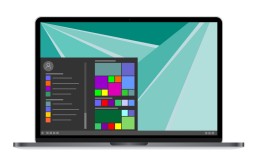
If you like them, you can also bring back the tiles
Windows 10 Pro has caused tremendous displeasure among some users. The cause of the anger was the tiles that housed the apps in the Windows 10 Start menu Some, however, found this to be more elegant and clear than the old design. Windows 11 does without the „tiling“. However, those who love them can also activate the design with a few steps and a few clicks:
- Open the registry editor with the search term "regedit".
- In the navigation bar, enter the command "ComputerHKEY_CURRENT_USERSoftwareMicrosoftWindowsCurrentVersionExplorerAdvanced".
- Now select "Advanced" in the sidebar with a right mouse click
- A context menu appears in which "New - DWORD value (32-bit)" is selected.
- This new DWORD value is named "Start_ShowClassicMode".
- Double-click to open this new value, now enter a 1 under the password "Value" and save with "OK".
- To return to the tile start menu, you now only have to restart the computer
Header Image: © monticellllo, stock.adobe.com