

Windows 10 Differences LTSB and LTSC
Windows 10 Differences LTSB and LTSC
Windows 10 LTSB and Windows 10 LTSC are not separate editions of Windows, but a service model for Windows 10 offered by Microsoft for corporate customers.
Differences between LTSB and LTSC in practice
Besides the major feature upgrades released twice a year (Windows 10 Fall Creators Update, Windows 10 April 2018 Update, Windows 10 October 2018 Update, Windows 10 April 2019 Update, these are also regularly released bug fixes and security updates. Windows 10 LTSC stands for „Long Term Servicing Channel“ and is an update channel reserved for corporate customers for the Windows 10 Enterprise edition with long-term support. For a certain time, this was called Windows 10 LTSB, which stands for „Long Term Servicing Branch“. The renaming coincided with the discontinuation of Windows 10 CCB or Current Branch for Business, another test channel for business customers that was no longer available and where they could test new Windows 10 features for eight months before implementation. The update channel for normal customers without long-term support also has a name. Before renaming Windows 10 LTSB to Windows 10 LTSC, Microsoft called it Windows 10 CB, which stands for Current Branch. In the meantime, Microsoft uses the name Windows 10 SAC or Semi-Annual Channel to match the updates that are released in April and October of each year. This is available for the Home, Pro and Enterprise editions. Windows 10 LTSC is reserved for customers with the Enterprise edition. Corporate customers with Windows 10 LTSC receive an upgrade offer with new features every 2-3 years instead of every six months, which they can accept or reject. Important security updates and bug fixes can, of course, be installed separately, as with the consumer version Windows 10 SAC. Furthermore, unlike the consumer version, Windows 10 LTSC comes without pre-installed apps. The IT department of each company can compile the desired standard installation itself via so-called deployment options. The advantage of Windows 10 LTSC is the long-term support from Microsoft
of up to six years. In comparison, with Windows 10 SAC, end customers are provided with separate security updates and bug fixes for only 18 months after the release of one of the twice-yearly updates and are thus practically forced to receive regular feature updates.

Header image: © wachiwit, stock.adobe.com

Buy Windows Server 2019 Variants at Blitzhandel24
Buy Windows Server 2019 Variants at Blitzhandel24
, the groupware solution Microsoft Exchange and also the no longer current previous versions of most desktop and server operating systems.
Server and client systems
Are you planning to renew your company’s IT infrastructure or are you in the process of building it from scratch? In this case, you should buyMicrosoft Windows Server 2019. With us, you have the option of purchasing the basic licence package for 16 processor cores or (as part of the Microsoft Open Lincese Volume Programme) additional licences for every two processor cores. Please note that at least licences for 16 cores must always be available for the operation of Windows Server 2019. You can also buy the various Windows Server CALs from us at attractive prices. For individual users, we offer the Single User Windows Server CAL for purchase. Device-bound Device CALs are also part of our offer. By purchasing a suitable Windows Server CAL, your employees receive remote desktop access to your server. This is ideal for thin-client environments or for companies that want to enable employees to work from their home office. You can buy the Microsoft Windows Server from us, just like the matching Client Access licences, at absolutely top conditions. When you buy Windows Server CAL, take into account any foreseeable growth phases of your company or project in the planning stage. This helps to save costs. By purchasing Microsoft Windows, you have the perfect client operating system for your Windows server environment. Thanks to the optimal integration of the various operating system functions in your company network, you save a lot of maintenance and administration effort. Buying Microsoft Windows means saving money. Especially if you not only want to buy the normal Microsoft Windows Server, but also, for example, a Microsoft Exchange Server and a Microsoft SQL Server, it makes perfect sense to buy Microsoft Windows for the client computers as well. If required, you not only have the option of purchasing the current Microsoft Windows 10 from us, but also have access to licences for Windows 7 and 8.1
. Particularly if you do not currently have the resources to convert your IT and purchase the current Microsoft Windows Server, it can make sense to purchase licences for the Windows versions that are no longer current.
Buy SQL Server 2017 and Exchange Server 2019
Depending on the size of your company and individual needs, you may also want to have your own groupware and database servers. In server landscapes dominated by Microsoft, it is advisable to buy the Microsoft Exchange Server for this purpose. Furthermore, it is usually a wise decision to buy the Microsoft SQL Server as a database system. For example, if you buy the Microsoft SQL Server 2017, you will receive a database server that is perfectly adapted to the conditions in a Microsoft environment. Of course, you can buy the Microsoft SQL Server 2017 as quickly and cheaply as usual at Blitzhandel24. You can also easily buy CALs for the Microsoft SQL Server from us. With the Exchange Server, Microsoft also provides a groupware and mail server that harmonises perfectly with MS Office.
Thanks to integrated Outlook on the Web, your employees can easily access their mail accounts even on computers without Outlook – including all Exchange Groupware features. You can also buy Exchange Server 2019 from us at exceptionally attractive conditions. By the way, you also have the option with us of purchasing most Microsoft licences, regardless of whether you want to buy Microsoft Windows or a Microsoft Exchange Server, as a volume licence within the framework of the Microsoft Open Licence Programme. Smaller companies in particular benefit from this, as it makes it cheaper and easier to set up a digital infrastructure. Are you still not sure whether you want to buy a Microsoft SQL Server or whether it makes sense for your company to buy a Microsoft Exchange Server? Feel free to contact our customer service, we will be happy to advise you!
Windows Server 2019 - An Overview
Windows Server 2019 – An overview of the different versions
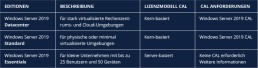
Since 2018, the new Microsoft server operating systems Windows Server are available. As with the predecessor Windows Server 2016, there are also different variants of Windows Server 2019 . Again, similar to Windows Server 2016 Essentials, there is the slimmed-down version of the operating system, Windows Server 2019 Essentials, and versions with a greater range of functions. Microsoft also offers a standard and a data centre variant. The versions differ in their range of functions and are thus aimed at different target groups and different purposes. How these differences look like and for whom which variant is the right one, we present in this blog article.
Only three versions of Windows Server left
Unlike the older edition, Windows Server 2012, Microsoft now only offers three versions of the Windows Server 2019 operating system. These are the Essentials, Standard and Datacenter versions. Versions such as the Windows Server 2008 R2 Enterprise variant are therefore no longer available. Those who are considering purchasing a server operating system should perhaps not get the older Windows Server 2016. This version is available today at a reasonable price, but the end of support in 2022 is already foreseeable. When purchasing a new system, it is worthwhile for security reasons to buy the latest version directly.

Windows Server 2019 Essentials
The most basic and affordable version of the operating system is the Windows Server Essentials version. While the feature set of Standard and Datacenter is very similar, Microsoft has programmed the Essentials variant with a reduced feature set and a small number of possible licensing options. This version is thus specifically tailored to small organisations and companies. Compared to Windows Server 2016 Essentials, the new version has been significantly improved, especially in the areas of „hybrid scenarios, „application innovation“, „hyper-converged infrastructure“ and „security“. Virtual networks can now be encrypted more easily with Microsoft’s Encrypted Networks and protected more reliably against forgery and eavesdropping attempts. Access to a network running Windows Server 2019 is automatically limited to 25 users and 50 devices. An organisation can only run one server with this operating system, as the Essentials Server must also be the domain controller. Therefore, this version is not interesting for institutions with more than 25 employees.
Windows Server 2019 Standard
The range of functions of the Standard version is already significantly greater than that of the Essentials version. Two virtualisation rights for two virtual machines can be used with the Standard version. The Standard version offers the possibility to buy additional rights. This means that institutions of any size can purchase the Windows Server 2019 Standard version with peace of mind if they need to use more advanced functions with their servers, but only need a small virtualisation level. The supported computing power of the Standard version is greater than that of the Essentials version. Windows Server 2019 Standard Multilingual and the Windows Server Standard Open Licence have a RAM limit of 24 TB and no CPU limit anymore. However, a minimum of 16 cores per server and 8 cores per processor are required.
Windows Server 2019 Datacenter
Windows Server 2019 Datacenter is the most comprehensive version of Windows Server 2019, and the hardware requirements are the same as the Standard licence. With the higher price for the Datacenter, in contrast to the Standard version, unlimited visualisation rights are also included, which means that this version is primarily aimed at larger companies that have particularly high demands on their IT systems and a high virtualisation requirement. In addition to the unlimited number of virtual machines and Hyper-V containers, the Datacenter offers even more features. These include, for example, „Storage Spaces Direct“, which simplifies the work with Software Defined Storages. For example, the server’s memory can be used independently of its hardware. Other features of the data centre that the standard version does not offer are Shielded Virual Machines and software defined networking.
Header image: © filins, stock.adobe.com
Norton Activation
Norton Activation
You can choose which way you want to activate it, either via our download link or via the official Norton site. The download link will take you directly to the key entry, but the official one requires you to do the following:
1) Go to the official Norton page – my.norton.com/home/setup
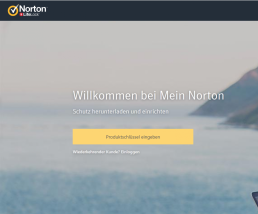
Once you are on the page, please go to „Enter product key“
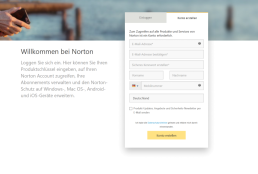
2) Create an account – if not existing – via „Create account“.
If you already have an existing account, please go to „Login“ and thus simply log in.
3) The last step
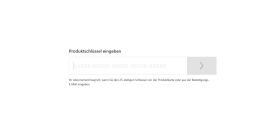
Enter the product key you received from us into the empty field and click on the arrow pointing to the right. This will give you the download and you can start right away.
Header image: © monticellllo, stock.adobe.com


Activation of AVG - TuneUP/ Internet Security/ Ultimate
Activation of AVG - TuneUP/ Internet Security/ Ultimate
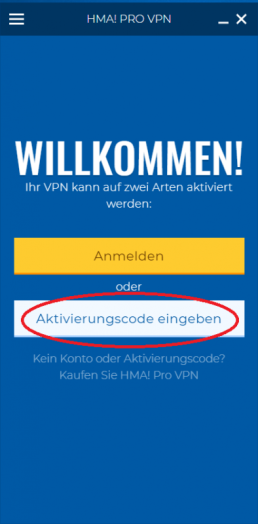
1) Please go to the official AVG activation page www.avg.com/de-de/activation.
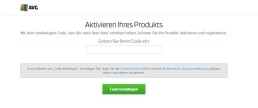
Enter the product key you received from us and then click on „Confirm code“.
2) After you have entered your product key, the following will be displayed:

Please enter all your data here and then go to „Activate“.
3) Now a new page opens and you can see that your licence has been accepted.
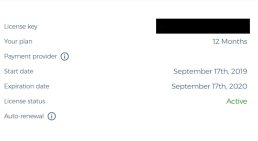
At the top you will see exactly which version, for how many devices and how long it is still valid
.
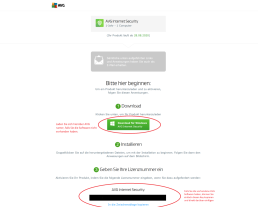
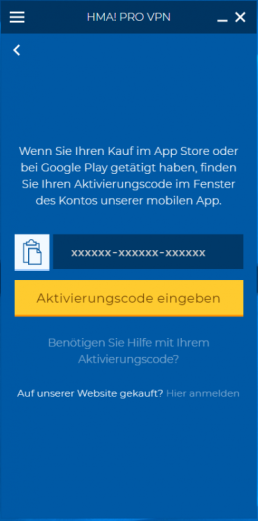
and enter the product key. You will receive an email from AVG immediately after activation, where you will be sent all this information again.

Unpacking ISO files with WinRAR
Unpacking ISO files with WinRAR
How to unpack ISO files?
The ISO file can be stored on the computer and considered as a copy of a CD or DVD. But how can you open the ISO file? Can you open the file directly? Actually, the extension of the ISO file is .iso and obviously you cannot open this file directly. Instead, you have to unpack the ISO file first. But how can you unzip ISO file? Can you unzip the ISO file for free or do you have to convert the opened ISO file? So to unzip ISO file, one should burn ISO images on a CD or DVD and then access the file in the image. But nowadays, with the help of modern ISO utility software, you can integrate, unpack or view the ISO file without burning the file to a disc. Next, I will show you the method for unpacking the ISO file. WinRAR is a free file archiver for Windows, MAC, Linux, FreeBSD and Android developed by Eugene Roshal of WinRAR GmbH. It can create and display archives in RAR or ZIP file formats and unpack numerous archive file formats. WinRAR also supports the creation of encrypted, multipart and self-extracting archives. The following compression formats are supported:(RAR, ZIP, CAB, ARJ, LZH, ACE, TAR, GZip, UUE, ISO, BZIP2, Z and 7-Zip). Further down you can download WinRAR for free.
How to unpack ISO files with WinRAR?
As mentioned above, the ISO file is in the format of the archive and most operating systems cannot process the ISO file. To unpack the ISO file, you need to install an archive utility or a compression utility. Here WinRAR is the best option for you. Take a look at the following steps.
Step 1: Download WinRAR

Step 2: After downloading, you can install the setup by double-clicking the WinRAR icon to start the installation process. During the installation process, you need to set some parameters, such as linking the „WinRAR with“ option. Under the box, you need to make sure that you have checked the „ISO“ box because if you select the ISO option, your computer will automatically unpack the ISO file with WinRAR.

Step 3: Unpack the ISO file on your computer. Locate the ISO file you want to unzip, and then look for the WinRAR logo on the ISO file. You just need to right click on the ISO file and select „Extract Here“. And then the ISO file will be extracted into a folder. Or you can just double-click the ISO file to open it. The WinRAR will display the ISO file in a new folder and allow you to check the details of the ISO file.


Then it’s done from unzipping the ISO file using WinRAR. It’s not hard at all, is it? Besides WinRAR compression utility, you can also find a lot of additional software for your reference, such as Ultra ISO. You can choose which one you prefer.
Header image: © Gstudio, stock.adobe.com

Colour-coding e-mails in Outlook
Colour-coding e-mails in Outlook
With so many emails arriving in your inbox every day, it can be helpful to instantly recognise emails from specific senders. Follow these steps if you want to highlight emails from specific senders, such as those from your boss:
1. In Outlook, switch to the Inbox of your mailbox.
2. On the View tab, in the Current View group, click on the command Change View
.
3. Click on the Manage Views
button. The following window opens:

4. Select the Compact view and then click on the Change button. The following dialogue opens:

5. Click on the Conditional Formatting button. The following dialogue screen appears:

6. Click on the Add button and give the new rule a meaningful name, e.g. Chief.
7. Now click on the Font button and select the desired formats.

8. Define the conditions for the formatting. To do this, click on the Condition button. The following dialogue appears:

9. Enter the name of your boss in the From field.
10. Click on the OK button. The following dialogue screen appears again:

11. Close the individual dialogue screens again by clicking on the OK
button in each case. After saving the changed view, all e-mails from the assigned sender will be formatted in the Inbox
as you have specified. In this example, all e-mails would appear in blue.
Repair an Office application (Excel for Office Word Office Outlook for Office More...)
Repair an Office application (Excel for Office Word Office Outlook for Office More...)
If an Office application such as Word or Excel isn’t working correctly, sometimes restarting it will fix the problem. If that doesn’t work, you can try repairing it. When you’re done, you might need to restart your computer.
Repair Office from the Control Panel
The steps to access the repair tool vary depending on your operating system. Choose from the drop-down list below.
Running Repair didn’t help. Now what?
Use this easy fix tool to completely uninstall Office.
1. Click this easy fix button to uninstall Office.
2. For the remaining steps showing how to save and use the easy fix, select your browser from the drop-down list below:
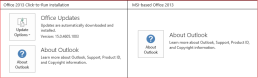
Is my Office Click-to-Run or MSI-based?
1. Open an Office application, such as Outlook or Word.
2. Go to File > Account or Office Account.
3. If you see an „Update Options“ item, you have a Click-to-Run installation. If you don’t see the „Update Options“ item, you have an MSI-based install.

Steps:
1. Download the fix it above
2. Install and run
3. Restart, run it again then restart
Download the Tool: https://outlookdiagnostics.azureedge.net/sarasetup/SetupProd_OffScrub.exe
Header-Bild: © wachiwit, stock.adobe.com
Removing Office 365 (trial or older Office versions) registry remnants
Remove Office 365 (trial or older Office versions) registry remnants
-
Download RemoveTool – Download here → RemoveTool
-
Run or open RemoveTool
-
After running the tool, click on„extended“ in the bottom left-hand corner of the window and uncheck the„Repair“ checkbox
-
Then follow the instructions step by step. If an error is found, click on„Fix problem„
-
Then restart the PC
Header image: © dennizn, stock.adobe.com