

Editing video is easy - the best programmes for video editing
Video editing made easy - the best programmes for video editing
Thanks to modern technologies, skilful video editing is possible even for non-professionals. Simple video editing programmes now go far beyond mere trimming. The numerous functions make extensive editing possible. In this way, anyone can turn their private videos into real eye-catchers to share on social media channels or to create valuable memories for their private video collection. But which are the best video editing programmes for beginners and what are the PC requirements?
Skilled video editing turns your film into an Oscar contender!
No expensive professional programmes are necessary to create an Oscar-worthy film.Simple video editing programs make it possible for everyone to give free rein to their creativity to create real works of art Once you start working with video editing, you will quickly discover the almost unlimited possibilities. Sophisticated video effects such as filters, graphics or transitions can now be found in many inexpensive video editing programmes. In this way, private videos can be skilfully transformed into true Oscar candidates. Videos essentially consist of three rough building blocks: the video recordings themselves, the music, the sounds as well as graphic elements The video recordings are therefore the cornerstone of every film. These recordings can easily be enhanced with audio effects such as music and sounds, which should not be missing from any masterpiece. Graphic elements include everything that is additionally faded in. For example, credits or other text overlays. Simple video editing programmes offer countless creative possibilities. It is up to the creator to discover all these functions and, together with the three basic building blocks, to create a work of art. Also important in a good film are the story and the development of the story as well as a skilful build-up of tension.

Simple video editing programmes for a top film experience
The following programs are inexpensive and particularly well suited for beginners:
Wondershare Filmora 9 This is a particularly beginner-friendly video editing programme. Beginners will find numerous functions here without feeling overwhelmed. The software focuses on simple operation and a favourable price If you would like to try out the programme first, you can Wondershare Filmora 9 offers a free trial version. The disadvantage of this, however, is that the films are marked with a watermark. The basic functions of Wondershare Filmora 9:
- Users can edit videos, photos and audio files directly
- Colour correction and error editing
- Up to 100 video tracks simultaneously
- Creative video effects such as filters, graphics, green screen effects and overlays
- Automatic scene detection for easy editing
- Advanced audio features such as noise reduction and an audio equaliser for fine-tuning music and other audio clips

Movavi This inexpensive video editing programme is clearly aimed at beginners. For anyone who does not want to spend a long time learning a complicated programme, it is Movavi an optimal choice. With Movavi, beginners have the opportunity to learn the basics of video editing excellently. A clear user interface and integrated instructions make this possible With Movavi you get good video editing software for little money. If you are not sure before buying, you can test the programme for free. The advantages of Movavi at a glance:
- Beginner-friendly operation
- Many effects, transitions and filters
- Also suitable for animated slide shows
Magix Video easy Also ideal for beginners. It is easy to use and beginners are not overwhelmed. The software attaches importance to the fact that creators quickly achieve their first sense of achievement Anyone who wants to edit their video quickly and easily, without the process taking up a lot of time, will make a good choice with Magix Video easy is a good choice. The software is so easy to use mainly because only basic tools and settings are available to the user. Magix Video easy is definitely not a programme with a large selection of effects or filters. However, the programme is absolutely sufficient for quickly editing the video recordings of the last family celebration and thus creating a memory Hobby filmmakers and beginners will find Magix Video easy a simple alternative to comparable programmes.
Here's what your PC needs for video editing
For the PC to be suitable for video editing, the hardware must meet a few criteria. Video editing is an extremely computationally and memory intensive process. A detailed description of the various hardware components would go beyond the scope of this article. There are numerous articles on the Internet that describe exactly what requirements a PC must meet for video editing. Ultimately, it also depends on the demands of the user. For those who want to create high-resolution 4K or even 8K films, even some seasoned gaming PCs are too slow. Beginners who are just starting to deal with the topic of video editing and use simple video editing programmes usually do not need a high-end PC. Anyone who is not sure whether their own PC meets the performance requirements can simply check the minimum requirements of the selected software. If your own PC does not meet the requirements, it does not have to be a completely new computer. With desktop PCs, individual parts can simply be replaced to increase performance.
Header image: © pvl, stock.adobe.com

Virus protection - surf safely
Wondershare Filmora X launches!
Wondershare Filmora Xofficially launches and the hugely popular video editor comes with a host of updated features perfect for new content creators and prosumers looking to drag and drop their way to exceptional videos. Wondershare Filmora X (pronounced „Ten“) is the highly anticipated major upgrade designed specifically for video editors looking for advanced animation and editing features like motion tracking and keyframing, without the high learning curve and cost. Wondershareunveils Filmora X, the next generation video editor „We’re on a mission to simplify the video creation process so our users can spend more time being creative,“ said Tobee Wu, CEO of Wondershare. „Whether you’re a YouTube creator, a small business owner or just make a great video for your friends and family, the new Wondershare Filmora Xwill change the way creators approach video editing.“ Newcomers to video editing are often overwhelmed by some products on the market that are difficult to learn and expensive to purchase. Wondershare Filmora X has improved its incredibly intuitive user interface – and combined with an impressive array of drag-and-drop features, this ease of use helps to inspire creativity in video editing. Now anyone can easily create video projects with layers of clips, cool animations and fun effects.
Filmora X
Filmora X or Filmora 9 ?
„The new version of the video editor makes every click an enjoyable and fun journey,“ said Luna Que, Product Director of Wondershare Filmora. „With Wondershare Filmora X, redundant, repetitive tasks have been eliminated so users can devote their time and energy to unleashing their imagination instead.“ New and returning users will discover an enhanced video editing experience with the latest advanced features easily mastered. Building on the tremendous success of Filmora9, which launched in December 2018, Wondershare Filmora X features the following new upgrades: Motion Tracking: intuitive tracking that is perfect for beginners and advanced editors. Tracking is easily accessible from the main Filmora Xinterface. Keyframing: Apply one-click presets for an easier keyframing experience or simply animate freely – the choice is yours. Editable presets make keyframing the easiest experience ever. Colour adjustment: Save time by applying colour correction settings to multiple clips at once. Take the colour settings of one clip and then easily apply them to a batch of clips. Audio ducking: Quickly duck your music to make your dialogue stand out. Fade one audio track into another with just one click! Dark/Light Skin UI Switch: Edit in light or dark mode in any setting for a more comfortable experience. Keyboard Shortcut Customisation: Edit faster with hotkey commands. Mac Touch Bar Support: A faster way to preview your timeline. These new features, in addition to the proven Filmora video editing toolkit, make Wondershare Filmora X the perfect choice for content creators looking for a stress-free and rewarding user experience.
Compatibility Wondershare Filmora X is available for Windows and Mac. It is compatible with Windows 10/Windows 8.1/Windows 7/ (64-bit OS) and macOS v. 10.15, macOS v. 10.14, macOS v. 10.13 and macOS v. 10.12. About Wondershare Founded in 2003, Wondershare is a global leader in software development and a pioneer in digital creativity. With powerful technology, the solutions we provide are simple and convenient, making Wondershare trusted by millions of people in more than 150 countries worldwide. We help our users pursue their passions so that together we can build a more creative world. www.wondershare.com Buy Filmora X now at Blitzhandel24.de for only 74,95 € click here 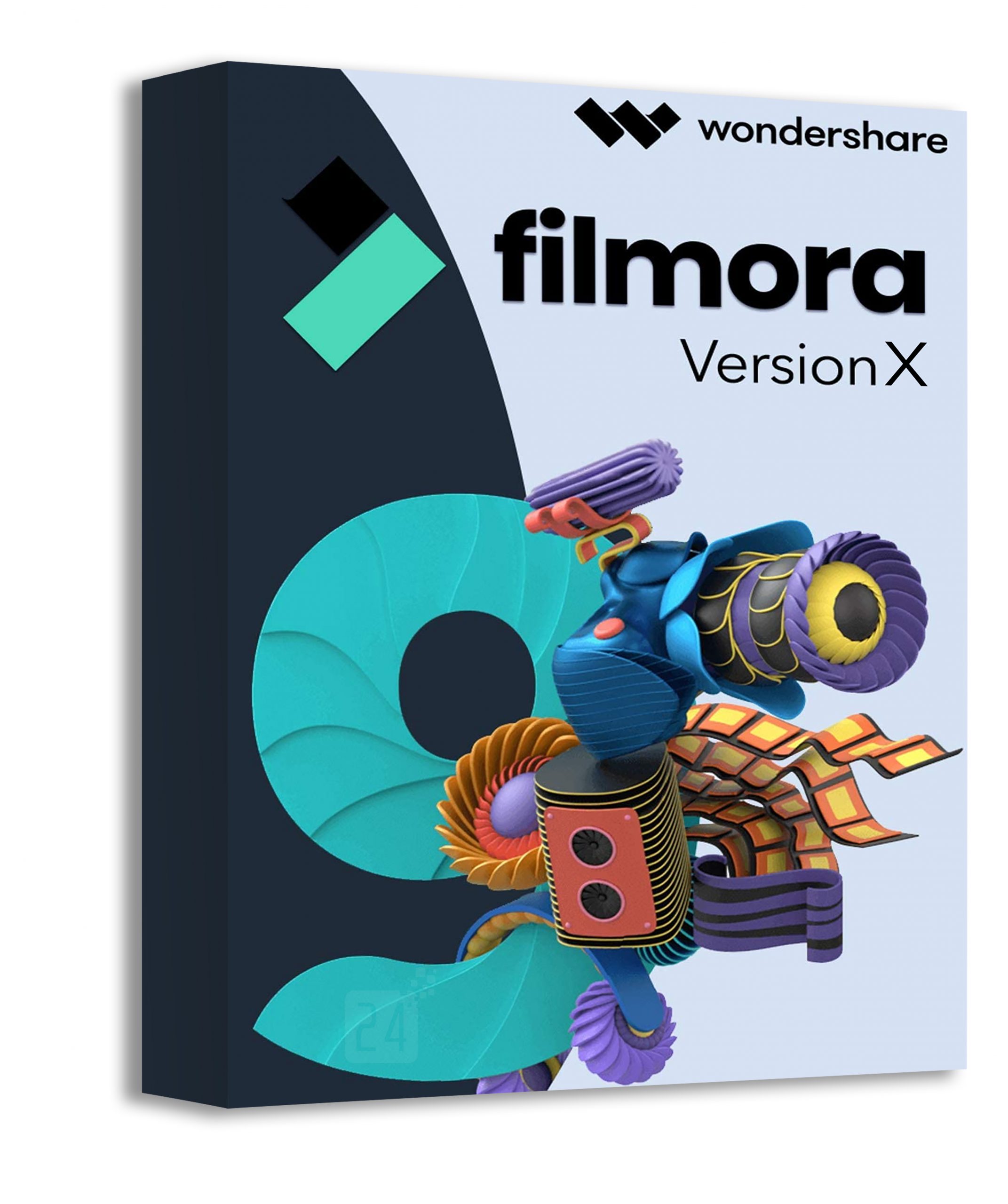


Virus protection - surf safely
Virus protection - surf safely
Most PC users think: My computer is safely protected against viruses and phishing attempts! But is that true? Because anyone who is on the World Wide Web often unwittingly opens the door to cybercriminals. Passwords are spied out, data is stolen, computers are suddenly controlled by third parties in order to extort a ransom. The only thing that helps is a stable firewall. Safe surfing with the right virus protection – we explain what is important!
Is Windows Defender sufficient?
By far the most users (76.7 percent) surf the Internet with a Microsoft PC. Since the Windows Defender programme is already pre-installed on the Windows Vista, 7, 8 and 10 operating systems, they also feel quite safe doing so.
But is it?
Windows Defender is a native anti-virus software of the Microsoft operating system that is supposed to protect against viruses, phishing, Trojans and other cyberattacks. The tool offers basic protectionand is fairly compact, so it hardly burdens the operating system. Comparative tests have shown, however, that Windows Defender is relatively unreliable compared to other tools Anti-virus programmes relatively unreliable compared to others. So if you really want to protect your computer from attacks from the net, you’d better look for alternatives. And there are plenty of them on the market.

Kaspersky or avast - which is the best virus protection for Windows 10?
Of all the programmes that do their best when it comes to virus protection, two in particular have stood out: Kaspersky and avast. Here, the respective advantages of the two lie above all in virus protection for Windows 10:
Kaspersky offers comprehensive virus protection
Against malware and viruses, Kaspersky proves to be one of the strongest tools on the market. For users, the company offers three paid models, which have different prices depending on the type of use – private or business.
- Kaspersky Anti-Virus costs €20.96 for 1 PC per year. It is a simple antivirus software for Windows and offers real-time as well as on-demand protection against malware, viruses, spyware and ransomware.
- Kaspersky Internet Security is available per PC and year for 27.96 €. In addition to the functions of Kaspersky Anti-Virus, it also offers protection against cybercrime such as phishing scams or credit card theft.
- Kaspersky Total Security costs 34.96 € per computer per year and is mainly intended for companies and professional PC use. Bonus features include a password manager and parental control.
avast scores with a free version
Avast 2020 has given its two protection programs a practical update. Numerous improvements, an optimisation to the password manager and a rescue medium are part of it.
- Avast Free Antivirus 2020 costs nothing and yet contains basic protection against viruses, Trojans and other malware. Included, for example, are a virus scanner, a password vault and a secure browser. Perhaps the most important update is the „Ransomware Shield“, which was previously only available in the paid version. It offers additional protection against extortion viruses.
- Avast Premium Security 2020 costs 69.99 euros per year as a single-user licence and 89.99 euros per year as a multi-user licence (for ten computers). In addition to all the functions of the free software, the professional version includes a firewall, an automatic software updater, detection of dangerous websites, an anti-spam function, webcam protection, a sandbox, a data shredder and additional protection for sensitive data. Also practical is the „Remote Access Shield“, which allows certain people to remotely control the PC while everyone else is blocked
Best virus protection for Windows 10? It depends ..
On the one hand, you should ask yourself what the protection of your own data and security when surfing is worth to you. On the other hand, you should also ask how much protection you need. After all, more sensitive data is certainly handled in companies than in the private sphere.
Header image: © VectorMine, stock.adobe.com
Never lose data again - create backups like the pros
Never lose data again - back up like the pros
There’s hardly a job today that doesn’t require a computer. This means that a vast amount of data is not only sent through the lines, but is also stored on the computers‘ hard drives. And what happens if the computer breaks down? Are all these important and sometimes highly sensitive data lost forever? Not if the data has been backed up in a suitable way. This is exactly why a regular backup is so important! We show you what is important.
Backup with the proven 3-2-1 rule
Customer data, but also photos, forms, passwords and programmes are gone when the PC is gone. This is not only annoying, but also dangerous. Because all kinds of illegal mischief can be done with such data. Once the data has fallen into the wrong hands, it is essential to protect it from further access. But how is that supposed to work if, for example, you don’t know your passwords or can no longer find the licence key for this or that programme?
The 3-2-1 rule established by security experts helps here
- All data should be available 3 times: On the PC (or notebook etc.) and on two other backup media.
- The backups should be stored on 2 different modern data carriers. For example, in a suitable cloud AND on an external hard drive.
- One of these storage media should always be kept encrypted off-site. This way, nothing is lost even in the event of a burglary.

Recovery tools and more: important backup programmes
There are many good tools that can be used to back up, transfer and even restore data . These include
- Especially for SMEs (small and medium-sized enterprises), the Genie Backup Manager has proven itself. It is suitable both for backing up data and for restoring lost data.
- The EaseUS Data Recovery Wizard is able to recover deleted data. It doesn’t matter whether the data was accidentally deleted or fell victim to a hardware error or even a virus. The tool is compatible with FAT file systems, which means that files from memory cards or USB sticks can also be rescued and repaired.
- With EaseUS Partition Recovery it is even possible to recover complete hard disk partitions.
Those who work with several computers are best served with the software PCmover is the best choice. The programme transfers programmes, settings and files from one computer to another without losing important system files. Even security and registry settings of multiple users are preserved.
Which data carriers are suitable for a professional backup?
The method used to back up data depends on how much data is involved, how long it is to be retained and at what intervals the backup is to take place. CD’s and DVD’s or Blu-Ray’s only have a limited storage volume and a limited life span. An external hard disk is much more suitable for backup. Even more suitable is an RDX removable hard disk that automatically creates a backup while the PC is in operation. In terms of backup, data backup via the network to NAS as well as via a cloud or an FTP server is becoming more and more established.
Header image: © ST22Studio, stock.adobe.com
Never lose data again - create backups like the pros
Never lose data again - back up like the pros
There’s hardly a job today that doesn’t require a computer. This means that a vast amount of data is not only sent through the lines, but is also stored on the computers‘ hard drives. And what happens if the computer breaks down? Are all these important and sometimes highly sensitive data lost forever? Not if the data has been backed up in a suitable way. This is exactly why a regular backup is so important! We show you what is important.
Backup with the proven 3-2-1 rule
Customer data, but also photos, forms, passwords and programmes are gone when the PC is gone. This is not only annoying, but also dangerous. Because all kinds of illegal mischief can be done with such data. Once the data has fallen into the wrong hands, it is essential to protect it from further access. But how is that supposed to work if, for example, you don’t know your passwords or can no longer find the licence key for this or that programme?
The 3-2-1 rule established by security experts helps here
- All data should be available 3 times: On the PC (or notebook etc.) and on two other backup media.
- The backups should be stored on 2 different modern data carriers. For example, in a suitable cloud AND on an external hard drive.
- One of these storage media should always be kept encrypted off-site. This way, nothing is lost even in the event of a burglary.
Recovery tools and more: important backup programmes
There are many good tools that can be used to back up, transfer and even restore data . These include
- Especially for SMEs (small and medium-sized enterprises), the Genie Backup Manager has proven itself. It is suitable both for backing up data and for restoring lost data.
- The EaseUS Data Recovery Wizard is able to recover deleted data. It doesn’t matter whether the data was accidentally deleted or fell victim to a hardware error or even a virus. The tool is compatible with FAT file systems, which means that files from memory cards or USB sticks can also be rescued and repaired.
- With EaseUS Partition Recovery it is even possible to recover complete hard disk partitions.
Those who work with several computers are best served with the software PCmover is the best choice. The programme transfers programmes, settings and files from one computer to another without losing important system files. Even security and registry settings of multiple users are preserved.
Which data carriers are suitable for a professional backup?
The method used to back up data depends on how much data is involved, how long it is to be retained and at what intervals the backup is to take place. CD’s and DVD’s or Blu-Ray’s only have a limited storage volume and a limited life span. An external hard disk is much more suitable for backup. Even more suitable is an RDX removable hard disk that automatically creates a backup while the PC is in operation. In terms of backup, data backup via the network to NAS as well as via a cloud or an FTP server is becoming more and more established.
Header image: © ST22Studio, stock.adobe.com
Windows 8, Windows 7 or Windows 10 Pro - what do I need?
Windows 8, Windows 7 or Windows 10 Pro - what do I need?
A lot has happened in the past few years since Microsoft revolutionised the computer market in 1985 with the Windows 1.0 operating system. Numerous versions followed, some of which were very successful, while others were rather displeasing to users. After Windows NT, Windows 98, Windows XP and Windows 8.1, the Windows 10 Home or Windows 10 Pro operating system is now the measure of all things . However, it is available in different versions. We explain here which one you really need.
Should you upgrade to Windows 10 Pro now?
If not now, when? could be the counter question. For really old Windows operating systems, there have been no new programmes for what feels like an eternity, and certainly no support or updates. For Windows 7 (since 2009), which is still installed on around 23% of all computers, support will end in January 2020 Support for Windows 7 and Windows 8 or Windows 8.1 (since 2012/2013) is also coming to an end. Here, even the already extended support will expire in January 2023 A Windows 8 Update can make sense, however, if the operating system has sufficient capacity (64 bit, at least 4 gigabytes of RAM). The same applies to a Windows 7 update. Even if there was a recent – unannounced – update, it makes sense to switch to one new Windows 7 Update the switch to one of the current operating systems such as Windows 10 Home or Windows 10 Pro makes sense in any case. And do it now!
Which operating system is installed on the PC?
To find out which version of the Windows operating system is currently installed on your computer, 3 simple steps are allyou need:
- After clicking on the Windows symbol (Start), enter „Control Panel“ and press Enter
- Navigate to „System„, here you will find out the speed of the operating system (32 or 64 bit)
- Under „Windows Edition“ you will find the exact version of the installed Windows operating system.
Who needs Windows 10 Pro and for whom is Home sufficient?
Not every PC user needs to install the nearly 230 euro Windows 10 Pro or the other versions of this operating system on his computer. It depends on how the computer is used. Windows 10 Home is best suited for purely private applications.With the new voice assistant Cortana, Windows Hello for logging in via camera and an individual adaptation of the start menu to one’s own needs, it contains all the essential functions. If you also install the free Classic Shell tool, you can even optically return to the Windows 7 user interface. Windows Defender protects against hacker attacks and malware. Windows 10 Pro uses all the functions of Windows 10 Home. On the other hand, features are built in that also satisfy small businesses and advanced users. With Remote Desktop, for example, it is possible to access one’s own computer from another PC The BitLocker programmeencrypts the contents of the hard disk and thus protects it from unauthorised access. The group policy editor is interesting for several users. It enables settings that precisely adapt Windows 10 Pro to personal needs. Windows 10 Education is a special solution for pupils, students and teachers. Only this user group and non-profit associations are to be entitled to purchase it Cortana is not installed in this version, but Windows to go is, for example, with which the operating system and personal data can be started on another computer via a USB stick. The security of the system is increased with the AppLocker function, which also allows individual applications to be blocked Windows 10 Enterprise was developed especially for companies with several employees. In addition to the usual functions plus Windows to go and AppLocker, it can be used to manage multiple computers and new updates can be checked before installation. The operating system is sold with multiple licences directly to companies.
Header image: © dennizn, stock.adobe.com
Windows 8, Windows 7 or Windows 10 Pro - what do I need?
Windows 8, Windows 7 or Windows 10 Pro - what do I need?
A lot has happened in the past few years since Microsoft revolutionised the computer market in 1985 with the Windows 1.0 operating system. Numerous versions followed, some of which were very successful, while others were rather displeasing to users. After Windows NT, Windows 98, Windows XP and Windows 8.1, the Windows 10 Home or Windows 10 Pro operating system is now the measure of all things . However, it is available in different versions. We explain here which one you really need.
Should you upgrade to Windows 10 Pro now?
If not now, when? could be the counter question. For really old Windows operating systems, there have been no new programmes for what feels like an eternity, and certainly no support or updates. For Windows 7 (since 2009), which is still installed on around 23% of all computers, support will end in January 2020 Support for Windows 7 and Windows 8 or Windows 8.1 (since 2012/2013) is also coming to an end. Here, even the already extended support will expire in January 2023 A Windows 8 Update can make sense, however, if the operating system has sufficient capacity (64 bit, at least 4 gigabytes of RAM). The same applies to a Windows 7 update. Even if there was a recent – unannounced – update, it makes sense to switch to one new Windows 7 Update the switch to one of the current operating systems such as Windows 10 Home or Windows 10 Pro makes sense in any case. And do it now!
Which operating system is installed on the PC?
To find out which version of the Windows operating system is currently installed on your computer, 3 simple steps are allyou need:
- After clicking on the Windows symbol (Start), enter „Control Panel“ and press Enter
- Navigate to „System„, here you will find out the speed of the operating system (32 or 64 bit)
- Under „Windows Edition“ you will find the exact version of the installed Windows operating system.
Who needs Windows 10 Pro and for whom is Home sufficient?
Not every PC user needs to install the nearly 230 euro Windows 10 Pro or the other versions of this operating system on his computer. It depends on how the computer is used. Windows 10 Home is best suited for purely private applications.With the new voice assistant Cortana, Windows Hello for logging in via camera and an individual adaptation of the start menu to one’s own needs, it contains all the essential functions. If you also install the free Classic Shell tool, you can even optically return to the Windows 7 user interface. Windows Defender protects against hacker attacks and malware. Windows 10 Pro uses all the functions of Windows 10 Home. On the other hand, features are built in that also satisfy small businesses and advanced users. With Remote Desktop, for example, it is possible to access one’s own computer from another PC The BitLocker programmeencrypts the contents of the hard disk and thus protects it from unauthorised access. The group policy editor is interesting for several users. It enables settings that precisely adapt Windows 10 Pro to personal needs. Windows 10 Education is a special solution for pupils, students and teachers. Only this user group and non-profit associations are to be entitled to purchase it Cortana is not installed in this version, but Windows to go is, for example, with which the operating system and personal data can be started on another computer via a USB stick. The security of the system is increased with the AppLocker function, which also allows individual applications to be blocked Windows 10 Enterprise was developed especially for companies with several employees. In addition to the usual functions plus Windows to go and AppLocker, it can be used to manage multiple computers and new updates can be checked before installation. The operating system is sold with multiple licences directly to companies.
Header image: © dennizn, stock.adobe.com
Buying a Windows 10 licence - where, how and which is the right one?
Buying a Windows 10 licence - where, how and which one is the right one?
Windows 10 provides users with a uniform software platform that can be used on different types of devices. PC, tablet, laptop, smartphone, Xbox, Internet – everything is possible! The comfort plus: The operating system adapts to the end device with the Continuum function and automatically recognises whether the user is working with a mouse, keyboard or touch. We explain what is important when buying a Windows 10 licence.
You can choose between these versions when buying a Windows 10 licence
Microsoft no longer issues new version numbers for its operating system – as of now, everything basically stays with Windows 10. However, since there have been several updates since the system was released in 2015, there are several versions available. The most important ones on the market are currently the following
- Windows 10 S: Suitable for private users and educational institutions. The system is optimised for PCs and laptops, but only Windows Store apps can be used. Only Edge is available as a browser
- Windows 10 Homedesigned for private users on a PC or notebook. The Edge browser, the Cortana voice assistant and the Continuum app framework are standard.
- Windows 10 Pro: Suitable for private users and small businesses on the PC and notebook.
- Windows 10 Enterprise: Suitable for businesses, runs on PC and laptop.
- Windows 10 Education: This is an upgrade from Home and Pro, intended for PC and notebook for students and universities
- Windows 10 Mobile : Intended for smartphone and tablet in the private sector.
- Windows 10 Mobile Enterprise : The mobile version for businesses that need the latest security upgrades.
Windows 10 LTSC and LTSB what are the differences?
Basically, LTSC (Long Term Servicing Channel) is an update version of LTSB (Long Term Servicing Branch). The older Windows 10 LTSB has several variants with different services:
Current Branch (CB):
New features and updates are automatically downloaded for both residential and business customers.
Current Branch for Business (CBB):
Applies exclusively to business customers. The advantage: Updates can be postponed for up to 8 months for testing purposes.
Long Term Servicing Branch (LTSB):
This variant was and is intended for business customers who want to change as little as possible in their existing systems. New LTSB versions are only released every 2 to 3 years, and customers can even reject them. The current Windows 10 LTSC does without Current Branch and Current Branch for Business. The Semi-Annual Channel (SAC) takes their place
LTSC:
This version is intended for large customers who receive an update every two to three years. As before, these can also be rejected. However, LTSC is only offered for Enterprise versions, all other Windows 10 versions are excluded
SAC:
Is suitable for private and business customers and receives an update of the features twice a year.
32 bit or 64 bit - you should also pay attention to this if you want to buy a Windows 10 licence
The order of magnitude 64 bits and 32 refers to the information processing capabilities of the processor built into the computer. A larger and faster processor is particularly important for large programmes or if several programmes are to be available at the same time. If the computer’s operating system has the 32-bit variant built in, a maximum of 4 gigabytes (GB) of RAM can be used.
How many bits does my processor have?
If you want to buy a Windows 10 licence, you should of course know how many bits the processor can process. To find out, you simply proceed in 4 steps:
- First press the „Windows key“, then enter „Control Panel“ in the search field.
- Then click on „System and Security“ in the corresponding window.
- Select the option „System“.
- Under the entry „System type“ you can find out whether 32 or 64 bits are installed.
Can I still buy a 64-bit Windows 10 licence?
The computer must be 64-bit capable
- If the entry „System type“ says „x64-based processor“, the basic requirements are already met.
- Now, however, it still depends on the working memory. Under the menu item „Installed RAM“, a value of at least 4 GB should be entered.
Header image: © PhotoGranary, stock.adobe.com
Windows 10 Lizenz kaufen – wo, wie und welche ist die richtige?
Windows 10 Lizenz kaufen – wo, wie und welche ist die richtige?
Mit Windows 10 steht Usern eine einheitliche Software-Plattform zur Verfügung, mit der unterschiedliche Gerätetypen bedient werden können. PC, Tablet, Laptop, Smartphone, Xbox, Internet – alles ist möglich! Das Komfort-Plus: Das Betriebssystem passt sich mit der Continuum-Funktion an das Endgerät an und erkennt automatisch, ob mit Maus, Tastatur oder per Touch gearbeitet wird. Wir erklären, worauf es beim Windows 10 Lizenz kaufen ankommt.
Zwischen diesen Versionen kannst du beim Windows 10 Lizenz kaufen wählen
Microsoft gibt für sein Betriebssystem keine neuen Versionsnummern mehr heraus – ab jetzt bleibt grundsätzlich alles bei Windows 10. Da es aber seit Erscheinen des Systems im Jahr 2015 einige Updates existieren, sind mehrere Versionen erhältlich. Die wichtigsten auf dem Markt sind derzeit folgende:
- Windows 10 S: Geeignet für Privatanwender und Bildungseinrichtungen. Das System ist für PC und Laptop optimiert, allerdings lassen sich ausschließlich Windows-Store-Apps nutzen. Als Browser ist lediglich Edge verfügbar.
- Windows 10 Home: Gedacht für Privatanwender auf dem PC oder Notebook. Der Browser Edge, der Sprachassistent Cortana sowie das App-Framework Continuum sind Standards.
- Windows 10 Pro: Für Privatanwender und kleine Unternehmen auf dem PC und dem Notebook geeignet.
- Windows 10 Enterprise: Ist für Unternehmen geeignet, läuft auf PC und Laptop.
- Windows 10 Education: Hierbei handelt es um einen Upgrade von Home und Pro, der für PC und Notebook für Schüler und Universitäten gedacht ist.
- Windows 10 Mobile: Im Privatbereich für Smartphone und Tablet gedacht.
- Windows 10 Mobile Enterprise: Die Mobile-Version für Unternehmen, die auf neueste Sicherheits-Upgrades angewiesen sind.
Windows 10 LTSC und LTSB wo liegen die Unterschiede?
Im Grunde genommen ist LTSC (Long Term Servicing Channel) eine Update-Version von LTSB (Long Term Servicing Branch). Das ältere Windows 10 LTSB hat mehrere Varianten mit unterschiedlichen Services:
Current Branch (CB):
Neue Features und Updates werden sowohl für für Privat- als auch für Geschäftskunden automatisch heruntergeladen.
Current Branch for Business (CBB):
Gilt ausschließlich für Geschäftskunden. Der Vorteil: Updates lassen sich zum Testen erst mal bis zu 8 Monate aufschieben.
Long Term Servicing Branch (LTSB):
Diese Variante war und ist für Geschäftskunden gedacht, die möglichst wenig an ihren bestehenden Systemen ändern wollen. Nur alle 2 bis 3 Jahre erscheinen hierbei neue LTSB-Versionen, die von den Kunden sogar abgelehnt werden können. Das aktuelle Windows 10 LTSC kommt ohne Current Branch und Current Branch for Business aus. An deren Stelle tritt der Semi-Annual Channel (SAC).
LTSC:
Diese Version ist für Großkunden gedacht, die alle zwei bis drei Jahr ein Update erhalten. Diese können wie vorher auch abgelehnt werden. Allerdings wird LTSC ausschließlich bei Enterprise Varianten angeboten, alle anderen Windows 10 Versionen sind davon ausgeschlossen.
SAC:
Ist für Privat- und Geschäftskunden geeignet und erhält zweimal pro Jahr ein Update der Features.
32 Bit oder 64 Bit – auch darauf solltest du achten, wenn du eine Windows 10 Lizenz kaufen willst
Die Größenordnung 64 Bit und 32 bezieht sich auf die Informationsverarbeitung des Prozessors, der im Computer verbaut ist. Ein größerer und schnellerer Prozessor ist das vor allem bei großen Programmen oder wenn mehrere Programme gleichzeitig zur Verfügung stehen sollen wichtig.
Hat das Betriebssystem des Rechners die 32 Bit-Variante eingebaut, lässt sich ein Arbeitsspeicher von maximal 4 Gigabyte (GB) nutzen.
Wie viel Bit hat mein Prozessor?
Wer eine Windows 10 Lizenz kaufen will, sollte natürlich wissen, wie viel Bit der Prozessor verarbeiten kann. Um das herauszufinden, geht man ganz einfach in 4 Schritten vor:
- Zuerst die „Windows-Taste“ drücken, dann im Suchfeld „Systemsteuerung“ eingeben.
- Dann im entsprechenden Fenster auf „System und Sicherheit“ klicken.
- Die Option „System“ wählen.
- Unter dem Eintrag „Systemtyp“ findet man heraus, ob 32 oder 64 Bit installiert sind.
Kann ich trotzdem eine 64 Bit Windows 10 Lizenz kaufen?
Dazu muss der Computer 64 Bit fähig sein.
- Steht im Eintrag „Systemtyp“ der Vermerk „x64-basierter Prozessor“, sind die Grundvoraussetzungen schon mal gegeben.
- Jetzt kommt es allerdings noch auf den Arbeitsspeicher an. Unter dem Menüpunkt „Installierter Arbeitsspeicher (RAM)“ sollte ein Wert von mindestens 4 GB eingetragen sein.
Header-Bild: © PhotoGranary, stock.adobe.com

Antivirus programme - Protect the system
Antivirus programme - Protecting the system
As almost everyone has access to PCs, smartphones and tablets these days, and through them to the Internet, the dangers in the form of malware from cybercriminals have increased at the same time. An antivirus programme increases IT security and protects the system. Antivirus is the counter term to computer virus, which emerged with the introduction of computer systems in the 1980s. Antivirus software includes programmes that find malware and remove it from the system on their own. In the meantime, antivirus programmes prevent a wide range of cyberattacks and infections with malware such as worms, Trojans, keyloggers and ransomware in advance. Despite all the advantages, 27 percent of Windows users have no virus protection installed, although the choice and variety of functions are greater than ever. A suitable virus scanner and the ideal antivirus programme can be found on this page.

Different types of antivirus
Real-time antivirus
Real-time antivirus is active around the clock and in most cases runs unnoticed in the background. This type of antivirus programme scans all files, programmes and memory via a system interface. If the real-time scanner detects something suspicious, it informs the user and asks whether he or she should block access, delete the file or move it to quarantine. The user can do the same manually to check the entire system.
Online antivirus
Online antiviruses load the virus pattern to be checked via the Internet connection and thus keep an eye on current threats. This type of antivirus is often referred to as an online virus scanner. It is often used as an additional safeguard to the installed virus scanner if the user suspects that his system has been infected.
Other virus scanners
Numerous threats mean numerous protection options and thus virus scanners. Especially in the business environment, antivirus software is used for network analysis. However, the different types of virus scanners also have some disadvantages.
Disadvantages of antivirus programmes
Real-time antivirus often slows down the systemwhile other software applications are delayed. Furthermore, it is possible that the antivirus programme reports malware that is not actually malware. And this may delete files or applications incorrectly identified as computer viruses. Besides, it can be counterproductive to have two antivirus scanners in use at the same time because they can block each other. As a result, the desired IT security is endangered rather than secured. In some cases, antivirus programmes take things too seriously and block harmless software or block access to harmless websites . This is known as „false positives“ Tools that „tune“ or „clean“ the operating system are also of dubious use. This is because Windows already includes functions such as disk clean-up and memory optimisation to free up space on the hard disk. A so-called registry cleaner can even damage the operating system, and Microsoft is known for refusing support to customers who use such programmes.

The right virus protection
Home users of Windows have a viable antivirus solution in Windows Defender, which Microsoft developed and therefore integrates smoothly with Windows. Other free antivirus programmes are basically advertisements for their commercial brethren For business users, Windows Defender is probably not the best choice. Using the software requires active participation in Microsoft’s reputation service SpyNet. If Windows Defender finds suspicious files on a computer, it uploads them to Microsoft without asking – in case of doubt also confidential data. Professional users therefore tend to use a commercial antivirus solution instead . Most of them offer the option of preventing the upload of suspicious files, even if this can reduce the level of protection To find the right antivirus, one should first install a trial version . This way, one can try out the application extensively and decide whether the package meets the requirements.
Header image: © Ico Maker, stock.adobe.com