
First consider: Is the computer slow or does the speed problem only affect a single programme? If the latter is the case, then take a closer look at the programme. Use the Task Manager to find out which programmes are currently putting the most load on the PC. With AVG TuneUP you can also clean up and speed upyour PC.
Running processes

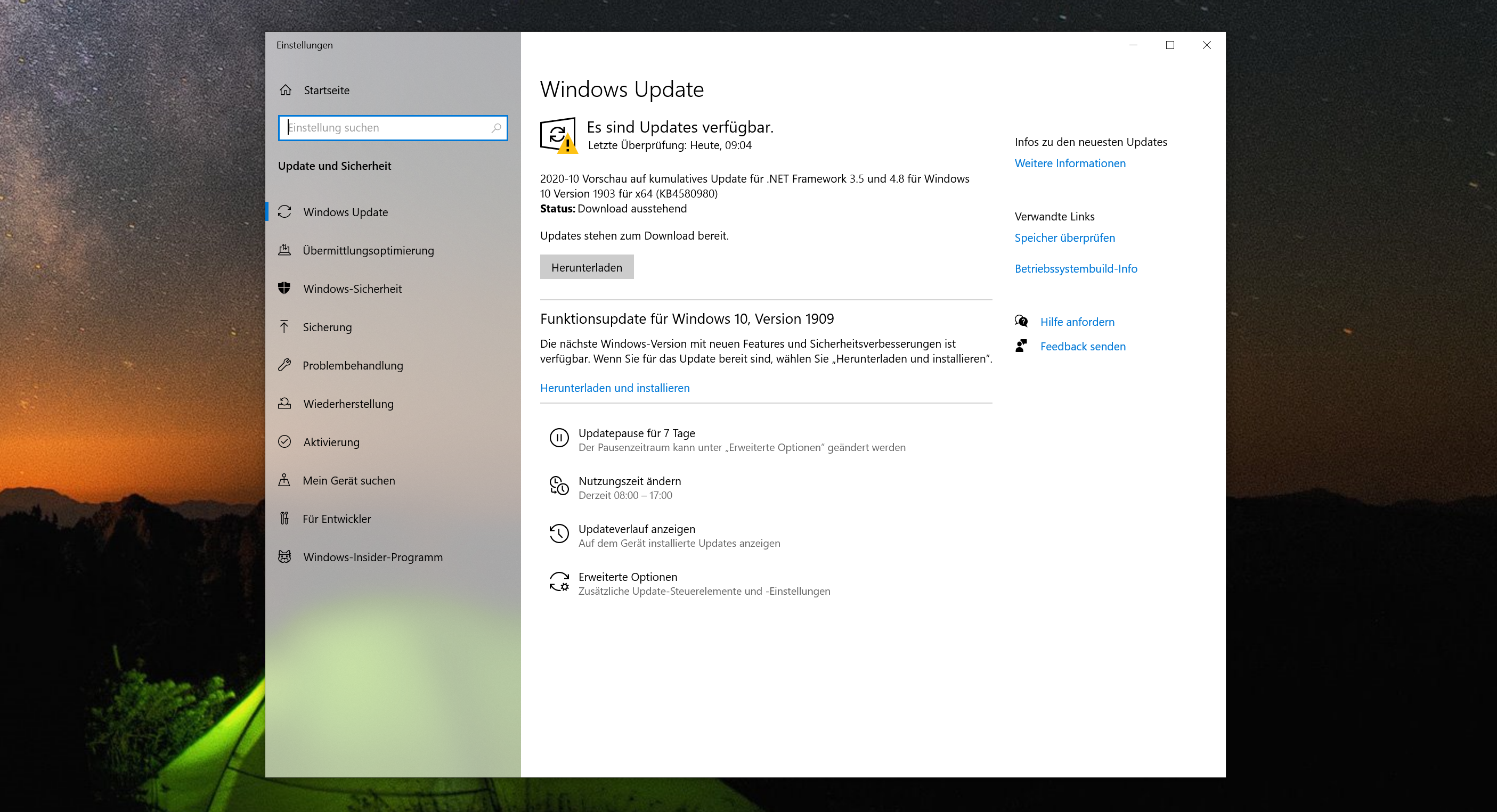
If your WindowsPC becomes slow on a regular basis, it could of course be because it is not up to your requirements. Before you think about buying a new PC, you should first check whether the operating system and programmes are up to date. The easiest way to update Windows is via Windows Update. The update function could also be damaged or disabled for whatever reason.
Windows Updates
 Over time, you install numerous programmes and software applications on your PC. Many of them nest in the autostart programmes after installation. This means that your computer wants to open all these programmes immediately after booting. The more programmes there are in this list, the slower your PC will start. Under Windows, you can use the key combination (CTRL)+(SHIFT LEFT)+(ESC) to call up the task manager, which you can use to deactivate autostart programmes that are not needed.
Autostart programmes

If you have only had an old HDD in your system so far, you should think about installing a much faster SSD now at the latest. Within the last few years, the prices for semiconductor drives have dropped significantly. A good 500 GB SSD can now be bought for less than 60 euros from various online shops. 
-
- Press the key combination [Windows] + [R]. A new
dialogue box opens.
- Enter the command „msconfig“ here and confirm with [Enter].
- Click on the „Start“ tab and then on „Advanced Options“
- If you check the box in front of „Number of processors“, you can select how many cores Windows should be started with. Set the desired number and finally click on „OK“.
Advanced start options
